How to create delivery zones on a map
Delivery zones decide who you deliver to, what it costs and which day the van comes. Here's how to draw them from real customer locations, check them for gaps and overlaps, and export the zones for the rest of your tools.
Quick answer
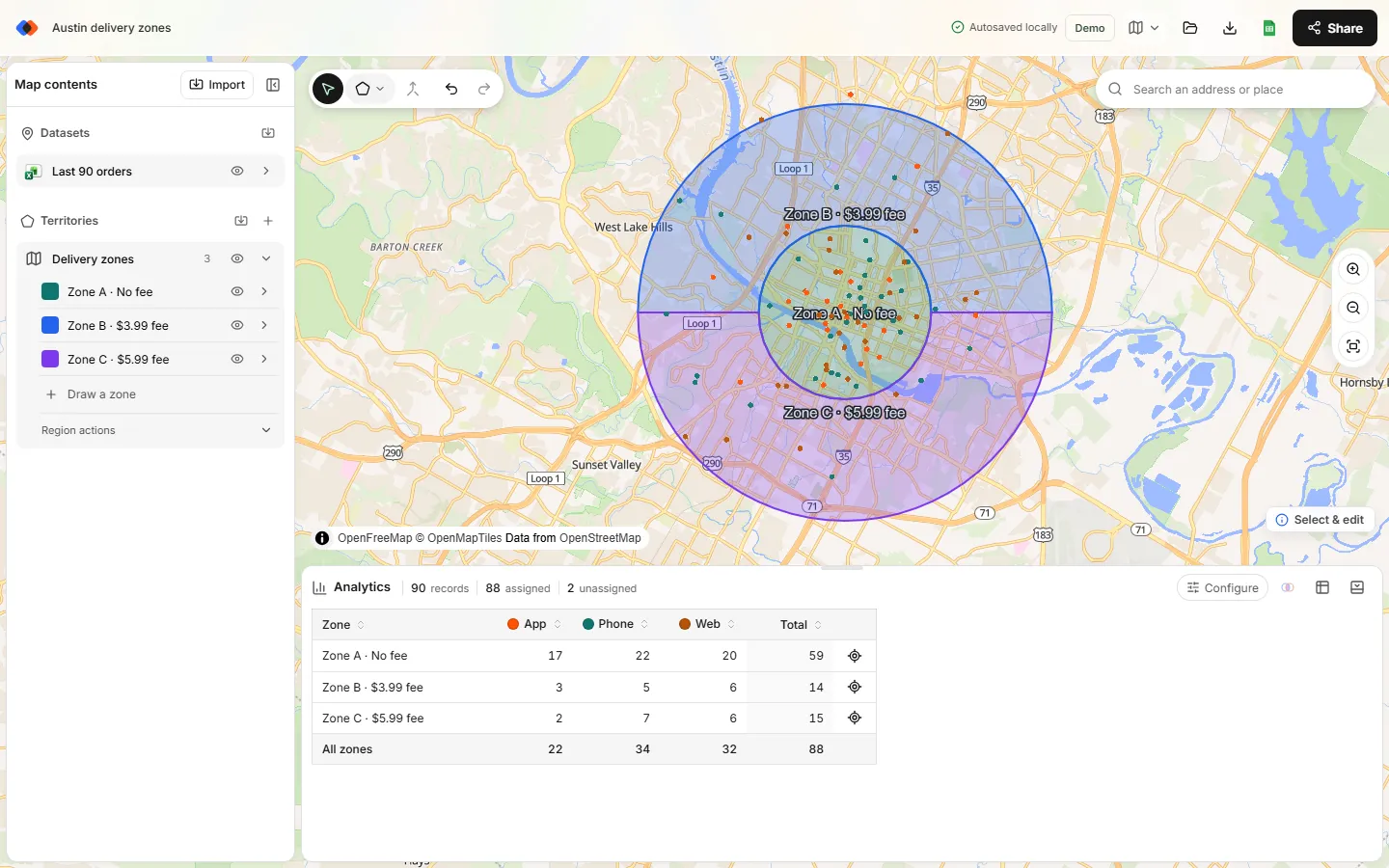
Import your customer or past-order locations with latitude and longitude, then draw each delivery zone as a polygon around the streets it covers. Name every zone with its rule, such as “Zone A · $3 fee”. In Analytics, check how many customers fall in each zone, how many are outside all zones and how many fall in two. Adjust the borders, then export the zones as KML or GeoJSON and a labeled map image for customers.
Common delivery zone designs
| Design | How it works | Good for | Watch out for |
|---|---|---|---|
| Distance rings | Fees rise with distance from the store or kitchen | Restaurants, bakeries, local retail | Straight-line distance ignores rivers, highways and one-way systems |
| Neighborhood zones | Polygons that follow roads, rivers and neighborhood edges | Most local delivery services | Takes longer to draw, but matches real travel |
| Delivery-day zones | Each zone is served on set days | Grocery, laundry, B2B supply runs | Busy zones may need splitting as volume grows |
| Driver or vehicle areas | Each driver or van owns a zone | Couriers and field teams | A zone map doesn't sequence stops; use a route planner for that |
Start from real customer locations
Draw zones around your demand, not around a guess. Export customer or order addresses with coordinates from your ordering system or CRM. No coordinates yet? Convert addresses to latitude and longitude first. A few months of orders shows where demand clusters and where a zone edge would split a busy street.
Step-by-step: create delivery zones
Import customer or order locations
Open the map builder and import your CSV, Excel file or Google Sheet. Color the points by a category column such as customer type or order channel to see patterns.
Draw the zones
Use the polygon tool to trace each zone along roads, rivers and other natural edges. For neighboring zones with no gap between them, draw one large delivery area and split it with Line cut.
Name each zone with its rule
Put the rule in the name so it shows on the map, in the legend and in exported files, for example “Zone A · $3 fee” or “Tuesday + Friday”.
Check coverage
In the Analytics panel, choose Configure, pick the customers under Dataset and the zones under Territories. Check the count per zone, plus the unassigned customers outside your delivery area and multi-zone customers with two possible fees.
Adjust and re-check
Move borders to keep busy streets in one zone, close gaps and remove overlaps. Counts update after each edit.
Export the zones
Choose Export and pick Zones for Google Maps (KML) or Zones for GIS (GeoJSON) for other tools, Map image or print/PDF for your website or flyers, and Point membership for a table of customers by zone. Exports need a free account.
Use your zones in other systems
Many online ordering, dispatch and e-commerce tools let you define delivery areas as polygons. Some accept an uploaded KML or GeoJSON file; others ask you to redraw the area on their own map, in which case the exported PNG and the KML open in Google Earth make a reliable tracing guide. Check your platform's help pages for the formats it accepts.
Review zones as you grow
- Export point membership each month and compare orders per zone.
- Split a zone when one driver can't cover its volume.
- Look at unassigned customers: a cluster just outside the boundary is a sign to extend the zone.
- Keep old versions as separate regions so you can compare the current and proposed plans.
What a zone map doesn't do
TerritoryKit defines and checks delivery areas. It doesn't calculate drive times, model traffic, plan routes or schedule drivers. Use a route planner for daily sequencing and keep the zone map as the agreed set of boundaries those routes work inside.
FAQ
How do I make a delivery zone map for free?
Import your customer locations into TerritoryKit, draw zones with the polygon tool, and check counts per zone in Analytics. Drawing and checking zones works in the browser without an account; exports need a free account.
Should delivery zones be circles or polygons?
Circles are quick, but they ignore rivers, highways and street layouts. Polygons that follow roads match real travel better and are worth the extra few minutes.
Can I set a different fee for each delivery zone?
Put the fee in the zone's name so it appears on the map, the legend and exports. Your ordering system then applies the fee when it uses the matching zone.
Can TerritoryKit calculate delivery drive times?
No. It works with the shapes you draw or import and counts the locations inside them. Drive-time areas and routing need a routing service.
How do I find customers outside my delivery area?
Check the unassigned total in Analytics, or open the data table and filter the Unassigned column for “yes” to list them.
Related guides
Build your first territory map
Bring your account list, draw the territories you need, and see the results as the map changes. Your first map is free.
Open Map Builder