How to draw territories on a map
Drawing territories by hand is quick once you know the tools. This guide covers polygons and circles, reshaping, merging and splitting, and the habits that keep borders free of gaps and accidental overlaps.
Quick answer
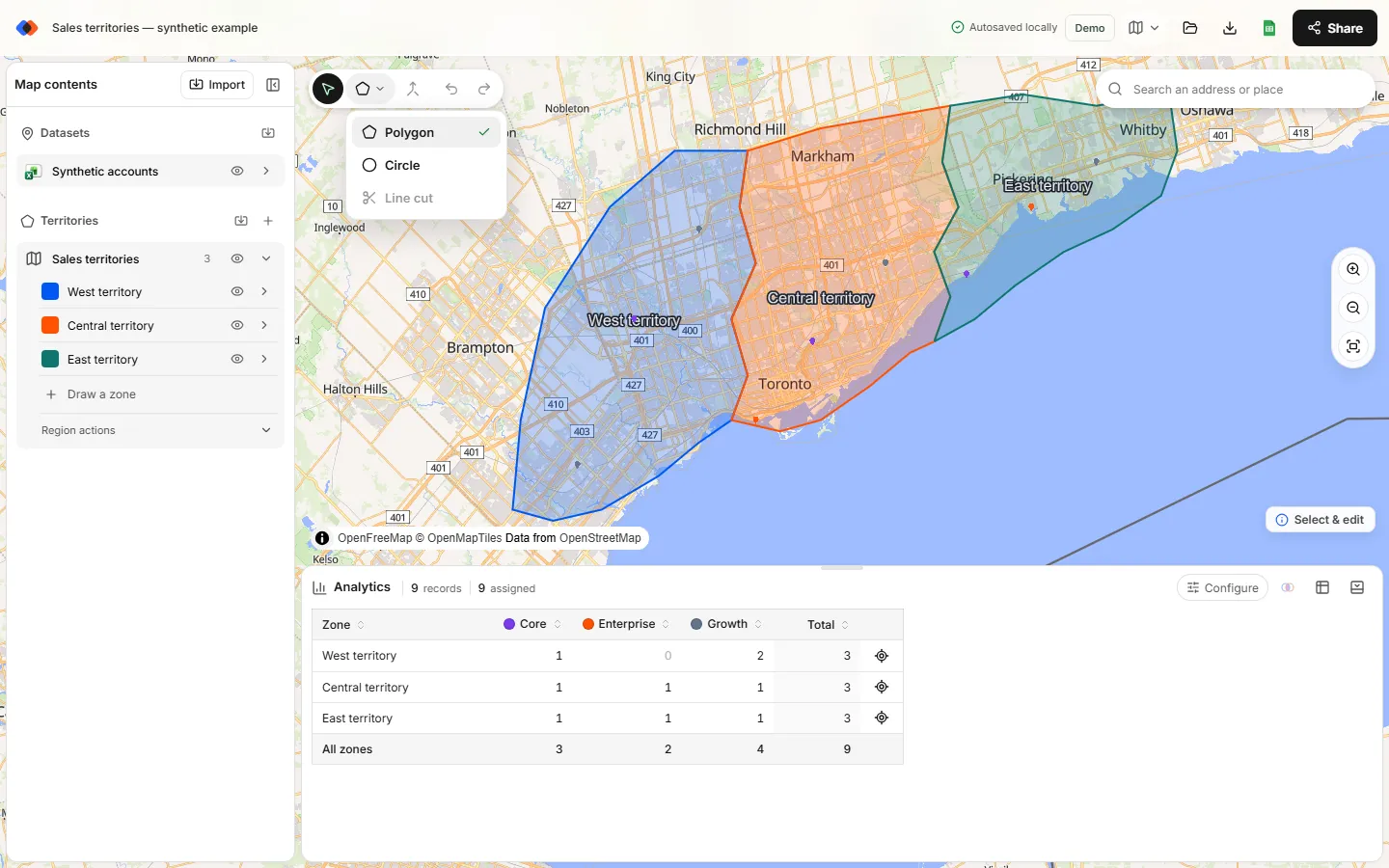
In the TerritoryKit map builder, open the draw tools in the map toolbar and choose Polygon. Click each corner of the territory and double-click to finish. For a round area, choose Circle and drag outward from the center. Use Select & edit to reshape, Merge selected zones to combine territories, and Line cut to split one in two. Counts per territory update as you draw.
| Tool | How to use it | Best for |
|---|---|---|
| Polygon | Click each corner; double-click or click the first point to finish. Enter finishes, Escape cancels. | Territories that follow roads, rivers or neighborhoods |
| Circle | Press, drag outward and release. | Simple round areas around a site |
| Select & edit | Click a territory, then drag its handles. Ctrl/Cmd- or Shift-click to select several. | Reshaping, moving and selecting |
| Merge | Select two or more territories in the same region, then merge. | Combining areas, such as ZIP areas into one territory |
| Line cut | Select one territory, draw a line fully across it, then press Enter. | Splitting a territory with a perfectly shared border |
| Undo / Redo | Toolbar buttons, up to 50 steps. | Trying changes safely |
Before you draw
- Put your locations on the map first. Import your CSV, Excel file or Google Sheet so you can see where accounts cluster. Drawing blind leads to redrawing.
- Choose a helpful basemap. Street shows roads and place names; Satellite shows rivers, parks and built-up areas; Light keeps busy maps readable.
- Decide on names. Short names such as “North” or “Metro East” work best as map labels and in exported tables.
Draw a polygon territory
Pick the polygon tool
Open the draw tools in the map toolbar and choose Polygon. You can also use Add territory → Draw polygon in the Territories panel.
Click the corners
Click once for each corner. Follow real features where you can, such as a highway or a river, so the border makes sense to the people who work it.
Finish the shape
Double-click, click the first point, or press Enter. Press Escape to cancel. The tool stays active, so you can draw the next territory straight away.
Name it
New territories start as “New zone”. Click the name in the Territories panel and type a real one, then open the color swatch to set its color and opacity.
Draw a circle territory
Choose Circle, press where the center should be, drag outward and release. A circle is a quick way to show the area around a store, depot or office.
Reshape, move and undo
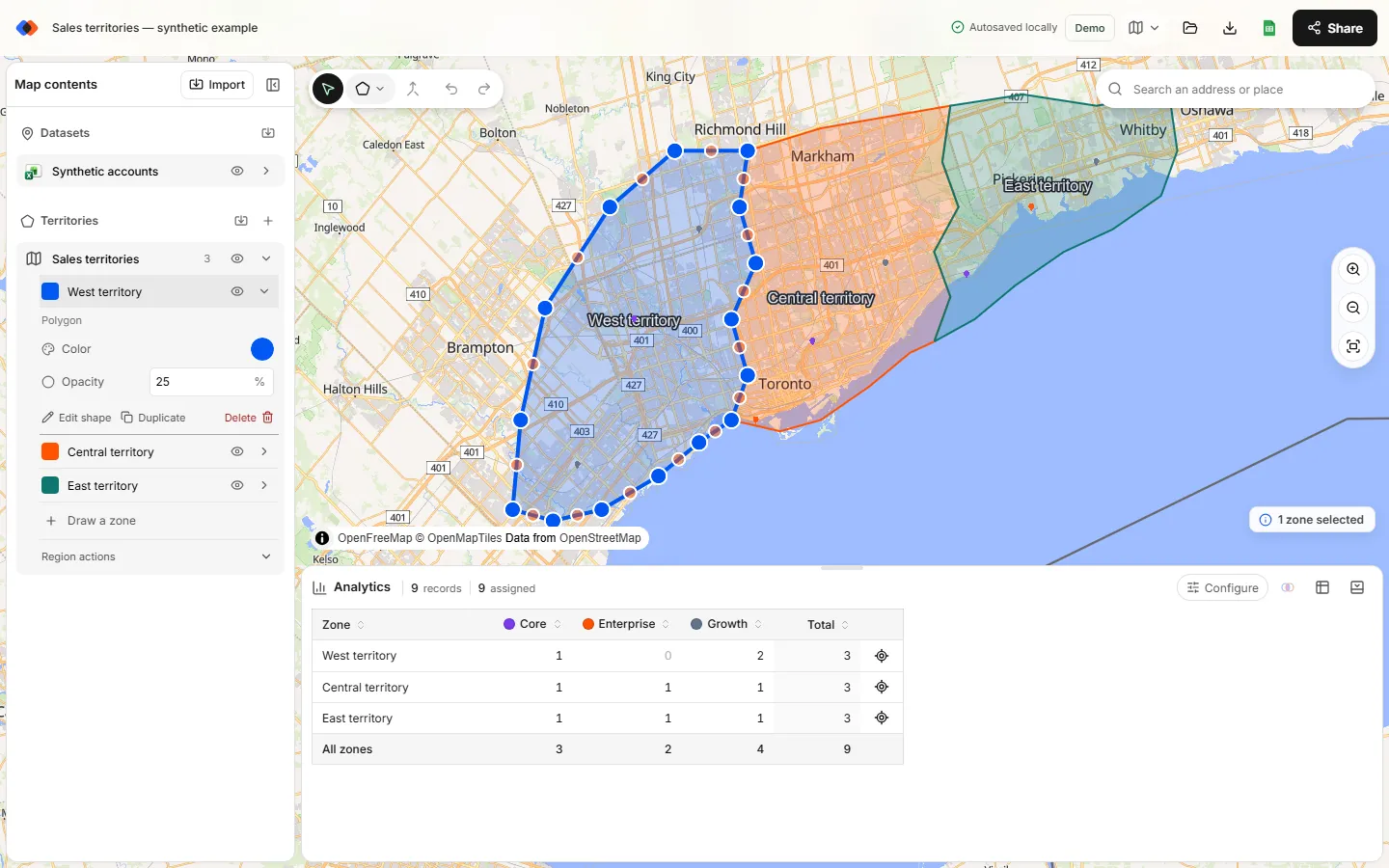
Choose Select & edit and click a territory, or use Edit shape in its formatting panel. Then:
- Drag a corner handle to move that corner.
- Drag a midpoint handle to add a new corner.
- Drag inside the territory to move the whole shape.
- Use the Undo and Redo buttons to step back through up to 50 changes.
Build shared borders without gaps
Drawing two neighboring polygons separately almost always leaves thin gaps or overlaps along their border, and points in those slivers end up unassigned or double-counted. A cleaner method:
- Draw one large polygon around the whole area you cover.
- Select it and choose Line cut from the draw tools.
- Draw a line fully across the area where the border should be, then press Enter. The pieces share the cut line exactly.
- Rename the pieces, which start as “<name> 1” and “<name> 2”, and cut again for more territories.
If you cut in the wrong place, merge the pieces back together and cut again.
Merge territories
Hold Ctrl (Cmd on a Mac) or Shift and click the territories you want to combine; they must be in the same region. Choose Merge selected zones in the toolbar. The result is named “<first name> merged” and keeps the first territory's color. Merging is how you build territories from smaller building blocks, such as ZIP code areas or imported neighborhoods.
Duplicate, hide and delete
- Duplicate copies a territory on top of the original, which is handy for testing an alternative boundary.
- Hide zone removes a territory from view and from the analysis without deleting it.
- Delete in the formatting panel asks for confirmation; deleting from the right-click menu happens immediately, so use Undo if you slip.
Organize territories in regions
A region is a group of territories, such as “2027 sales territories” or “Service areas”. Use Add territory → New region to keep alternative plans separate. Analytics compares one dataset with one region at a time, so you can switch between a current and a proposed plan without them double-counting each other.
Check your work
- Hover a territory to see how many points it contains.
- In the Analytics header, look for unassigned and multi-zone totals; both should be zero or explained. If they're absent, every point is in exactly one territory.
- Turn on the overlap highlight to ring points that fall in two territories.
- Open the data table and filter the Unassigned column for “yes” to list points outside every territory.
When the map looks right, see labels and legends for presentation and account assignment for exporting the result.
FAQ
Can I draw territories on a map for free?
Yes. You can draw, reshape, merge and split territories in TerritoryKit's browser map builder without an account. A free Demo account adds cloud saving for one map and ten exports.
How do I draw a territory with an exact radius?
TerritoryKit's circle tool is sized by dragging and doesn't show a radius. For an exact distance, create a buffer in a GIS tool such as QGIS and import it as KML.
Does TerritoryKit snap territories to each other?
No. To get a shared border with no gap, draw one large territory and split it with Line cut; the pieces share the cut line exactly.
Can I import territories instead of drawing them?
Yes. KML and KMZ polygons import as editable territories. See KML vs KMZ.
Is there a keyboard shortcut for undo?
No. Use the Undo and Redo buttons in the map toolbar, which step through up to 50 changes. While drawing, Enter finishes a shape and Escape cancels it.
Related guides
Build your first territory map
Bring your account list, draw the territories you need, and see the results as the map changes. Your first map is free.
Open Map Builder