How to assign accounts to sales territories using a map
Assigning accounts by hand gets slow and inconsistent once a list passes a few hundred rows. A map can do it for you: every account inside a territory's boundary belongs to that territory. Here's how to do it, check the edge cases, and get the result back into your spreadsheet.
Quick answer
Import your accounts with latitude and longitude, draw or import your territory boundaries, and let a point-in-polygon check decide which territory each account falls inside. In TerritoryKit, pick the account layer and territory layer in the Analytics panel, review unassigned and overlapping accounts, then export point membership as CSV or Excel and join it to your account list by account ID.
How location-based assignment works
Each account is a point. Each territory is a polygon or circle. An account belongs to every territory whose boundary contains its point. That gives you three outcomes to plan for:
- One territory: the normal case. The account has a clear owner.
- More than one territory: the territories overlap at that location. TerritoryKit counts the account in each of them and marks it as an overlap.
- No territory: the account sits in a gap between boundaries or outside the planned area. It's marked unassigned.
Points exactly on a boundary count as inside. If two territories share a border, an account sitting exactly on the line belongs to both, so check shared borders that run through dense areas.
What you need
- An account list with a unique
account_idand decimal latitude and longitude for every row. No coordinates yet? See how to convert addresses to latitude and longitude. - Territory boundaries: draw them in TerritoryKit, or import KML or KMZ files from Google Earth, Google My Maps or a GIS tool.
- Your current owner field, if you have one, so you can compare the old assignment with the map.
Step-by-step: assign accounts in TerritoryKit
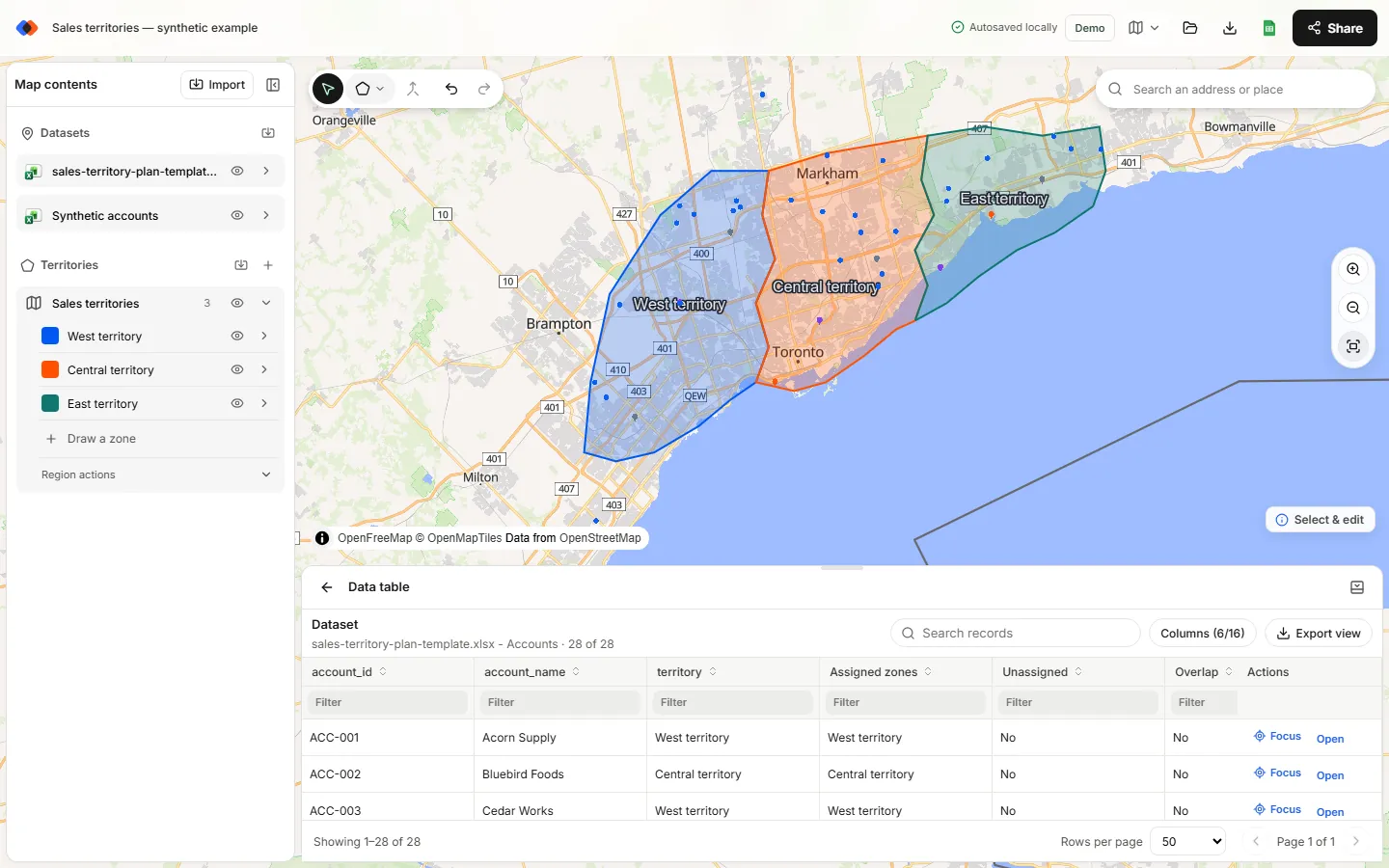
- Import accounts. In the map builder, choose Import, upload your CSV or Excel file and confirm the latitude and longitude columns. Review skipped or invalid rows before adding the layer.
- Add territories. Draw polygons or circles, or import a KML or KMZ boundary file. Name each territory the way you want it to appear in your CRM or spreadsheet.
- Run the analysis. In the Analytics panel, choose Configure and pick the account layer under Dataset and the territory layer under Territories. You'll see the count per territory, and the header shows how many accounts are assigned, unassigned and multi-zone.
- Inspect individual accounts. Select Open data table to search, filter and sort accounts with their Assigned zones, Unassigned and Overlap columns. Type “yes” in the Unassigned column filter to list every account outside your territories, and use Focus to fly to one on the map.
- Fix the exceptions. Reshape boundaries to close gaps or remove unintended overlaps. The overlap button in Analytics highlights accounts that sit in two or more territories, and counts update after each edit.
- Export point membership. Choose Export → Point membership and download CSV or Excel. Exports need a free account.
Read the membership export
| Column | What it contains |
|---|---|
point layer | The name of the account layer. |
point id | TerritoryKit's internal ID for the point. |
longitude, latitude | The coordinates used for the match. |
| Your original columns | Every field from your source file, such as account_id, name, segment or owner. |
matched zone ids | Internal IDs of the territories that contain the account. |
matched zone names | Territory names. Multiple territories are separated by a vertical bar, for example North|East. |
zone count | How many territories contain the account: 0, 1 or more. |
unassigned | true when the account is outside every territory. |
overlap | true when the account is inside two or more territories. |
Join assignments back to your account list
Paste the export into a new sheet named Membership. In Excel, turn it into a table named Membership and use a lookup on the account ID:
=XLOOKUP(A2,Membership[account_id],Membership[matched zone names],"Not found")&""
In Google Sheets, use column references instead. If account_id is column E and matched zone names is column L in the export:
=IFNA(XLOOKUP(A2,Membership!E:E,Membership!L:L),"Not found")
Then filter your master list for blanks (unassigned) and for values containing a vertical bar (overlaps). Those are the accounts that need a decision.
Decide the exceptions
- Overlaps: choose one owner with a written rule, such as the territory of the account's billing office, the rep with the existing relationship, or a named-account list. If the overlap was accidental, reshape the boundaries instead.
- Unassigned accounts: extend a nearby territory, create a new one, or assign the account to a house or inside-sales owner on purpose.
- Accounts on a shared border: nudge the border so it doesn't run through the account, or record the owner as an exception.
- Named accounts: large accounts with a dedicated owner should be listed separately so geographic changes don't move them.
Keep assignments current
Run the same check whenever accounts are added, a boundary moves or a rep changes. Re-export membership, compare it with the previous export, and record the changes. The sales territory plan template includes a Change log sheet for exactly this.
FAQ
What is point-in-polygon territory assignment?
A geometric test that checks whether each account's coordinates fall inside a territory boundary. Accounts inside a boundary are assigned to that territory.
What happens to an account that falls in two territories?
TerritoryKit lists both territories in matched zone names, sets zone count to 2 and marks the account as an overlap. You choose the final owner.
Can I assign accounts to territories by ZIP code instead?
Yes, if you import ZIP Code Tabulation Area boundaries as territories, or give accounts approximate coordinates from their ZIP code. See ZIP code territory maps.
Does TerritoryKit update my CRM?
No. It doesn't connect to CRMs. Export point membership as CSV or Excel and import that into your CRM, or sync results to Google Sheets.
Are accounts on a boundary line counted?
Yes. A point exactly on a boundary is treated as inside that territory, and inside both territories when the boundary is shared.
Related guides
Build your first territory map
Bring your account list, draw the territories you need, and see the results as the map changes. Your first map is free.
Open Map Builder