How to create a sales territory plan (free Excel template)
A sales territory plan answers three questions: who covers which accounts, why the split is fair, and how you'll know it's working. Download the free Excel template, then follow the seven steps below to build and map your plan.
Download the free template
The workbook is free, needs no sign-up, and contains synthetic example data you can overwrite. It works in Excel, Google Sheets and LibreOffice.
| Sheet | What it holds |
|---|---|
| Accounts | One row per account: ID, name, latitude, longitude, segment, status, annual potential, current revenue, visits per year and assigned territory. |
| Territories | Territory names, owners, coverage model (field, inside, hybrid or partner) and annual targets. |
| Summary | Live formulas for accounts, active accounts, prospects, potential, share of potential, revenue, visit hours and difference from the average territory. |
| Change log | Date, change, reason, accounts affected and approver for every boundary or assignment change. |
| How to use | Instructions and a column guide. |
What a sales territory plan includes
- Territory roster: each territory, its owner and how it is covered.
- Account assignments: every account mapped to exactly one territory, with exceptions written down.
- Balance measures: account counts, revenue potential and workload per territory.
- Targets: what each territory is expected to deliver.
- Rules: how to handle named accounts, accounts on a border, new accounts and rep changes.
- Review cadence: when the plan is checked and how changes are recorded.
Step 1: Set the goal and coverage model
Write down what the plan has to achieve before drawing anything: grow new logos in a region, protect key accounts, cut travel time, or onboard a new rep. Then decide how many territories you can staff and how each is covered. A field rep can handle far fewer accounts than an inside rep, so the coverage model drives territory size. Record both on the Territories sheet.
Step 2: Build a clean account list
Put one account per row on the Accounts sheet. Remove duplicates, give every account a stable account_id, and add decimal latitude and longitude. If your CRM export only has addresses, follow how to convert addresses to latitude and longitude. Add the fields you'll use to judge balance: segment, status, annual potential and expected visits per year.
Step 3: Choose how you'll measure balance
Pick one primary measure and one or two checks:
- Account count is simple but treats a small shop and a national account the same.
- Potential balances opportunity, so every rep has a fair shot at quota.
- Workload estimates time: the template multiplies
visits_per_yearby an hours-per-visit setting.
The territory balancing guide explains each measure and how to compare them.
Step 4: Map the accounts and draw territories
Open the TerritoryKit map builder and import the workbook; the Accounts sheet comes first so it's the one you map. Select the latitude and longitude columns and review any skipped rows. Then draw a polygon for each territory, or import boundaries you already have as KML or KMZ. Name each territory exactly as it appears on the Territories sheet.
Want to practice first? The template's accounts are synthetic records placed around the three territories of the sales territory starter project. Open the starter project, import the template workbook, and the 28 accounts land in its West, Central and East territories, with two deliberately left outside.
Step 5: Assign accounts and resolve exceptions
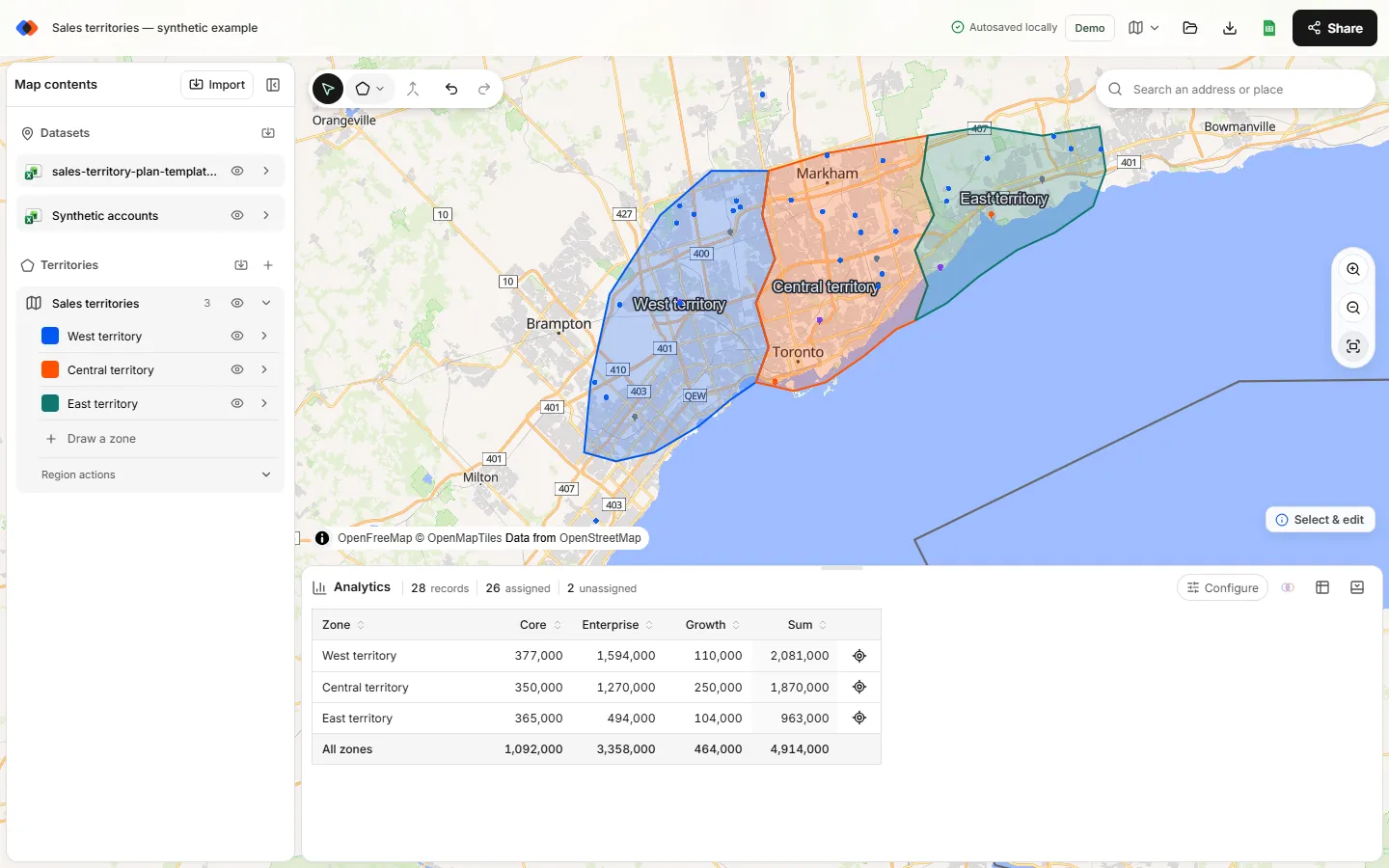
In the Analytics panel, choose Configure and pick the account layer under Dataset and the territory layer under Territories. You'll see accounts per territory, an optional breakdown by segment or status, and totals for unassigned accounts and accounts inside more than one territory. Set Measure to Sum of annual_potential to compare opportunity on the map. Then choose Export → Point membership (Excel), which needs a free account, and copy each account's territory into the template's territory column, matching on account_id. The account assignment guide shows the lookup formula.
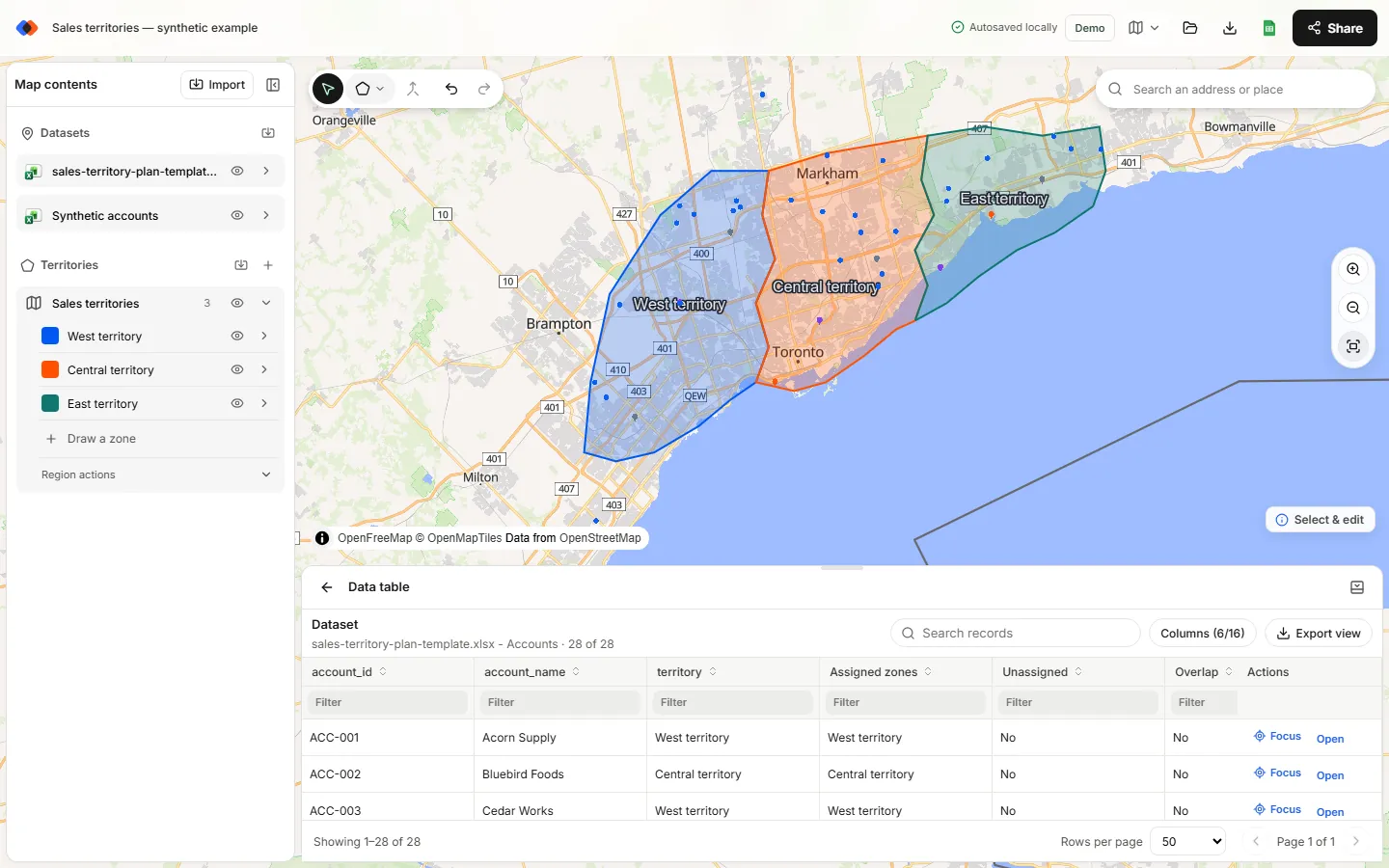
Decide every exception explicitly. An account in two territories needs one owner. An account outside every territory needs a boundary change or a named owner. Write the decision on the Change log sheet.
Step 6: Review the summary and rebalance
The Summary sheet recalculates as soon as territories are filled in. With the template's synthetic data it shows an uneven plan:
| Territory | Accounts | Annual potential | Share of potential | Visit hours | Potential vs average |
|---|---|---|---|---|---|
| West territory | 10 | 2,081,000 | 40% | 141 | +27% |
| Central territory | 10 | 1,870,000 | 36% | 126 | +14% |
| East territory | 6 | 963,000 | 18% | 69 | −41% |
| Unassigned | 2 | 295,000 | 6% | 18 | — |
West and Central have the same number of accounts, but West carries 11% more potential. East has less than half of West's potential, and two accounts have no owner. Typical fixes: move the boundary between Central and East so East picks up nearby accounts, extend a territory to cover the unassigned accounts, or give East a lower target. Make one change at a time, re-export membership and watch the Summary move.
Step 7: Communicate the plan and review it
Choose Export → Map image or print/PDF to add a title, territory labels and a legend, then download a PNG or save a PDF for the kickoff deck. Share the map itself with managers, and send each owner their account list. Then put a review on the calendar, usually quarterly, plus whenever a rep joins or leaves. Each review starts from the Change log, so you can explain why every boundary sits where it does.
Sales territory plan checklist
- Every account has one ID, valid coordinates and exactly one territory.
- Unassigned and overlapping accounts have documented decisions.
- Potential and workload are within a range you can defend, not just account counts.
- Named or house accounts are listed separately with their owner.
- Targets reflect each territory's potential.
- The map, the account list and the Change log agree.
- A review date is set.
FAQ
What should a sales territory plan include?
Territories and owners, account assignments, balance measures such as potential and workload, targets, rules for exceptions, and a review schedule with a change log.
Is the template really free?
Yes. Download the XLSX without signing up. The sample accounts are synthetic, so replace them with your own data.
Does the template work in Google Sheets?
Yes. Upload the XLSX to Google Drive and open it with Google Sheets; the summary formulas use COUNTIFS, SUMIFS, INDEX and MATCH, which Sheets supports.
How often should sales territories be reviewed?
Most teams review quarterly and whenever headcount, strategy or major accounts change. Recording each change keeps reviews quick.
Can TerritoryKit fill in the territory column automatically?
TerritoryKit calculates which territory each mapped account falls inside and exports that as point membership. You then copy it into the template with a lookup on the account ID.
Related guides
Build your first territory map
Bring your account list, draw the territories you need, and see the results as the map changes. Your first map is free.
Open Map Builder