Sales territory mapping in Excel: 3 methods compared
Most sales territory plans start in a spreadsheet. Excel can draw a simple territory map on its own, but only when territories follow states, counties or postal codes. Here are three methods, when each works, and how to get counts per territory back into your workbook.
Quick answer
You can map sales territories in Excel in three ways:
- Filled map chart. Best when each territory is a set of countries, states, counties or postal codes. Excel colors each region by territory.
- 3D Maps (Windows only). Plots each account as a point from coordinates or addresses, but cannot draw or count territories.
- Excel plus a territory map tool. Keep the account list in Excel, map it in a tool such as TerritoryKit, draw custom territories, then export each account's territory back to Excel.
| Filled map chart | 3D Maps | Excel + TerritoryKit | |
|---|---|---|---|
| Territories defined by | States, counties, postal codes | Not supported | Any shape you draw or import |
| Shows each account as a point | No | Yes | Yes |
| Custom boundaries | No | No | Yes: polygons, circles, KML or KMZ |
| Counts per territory | Only by formula, outside the map | No | Yes, with category breakdowns |
| Finds overlaps and gaps | No | No | Yes |
| Works on Mac | Yes, with Microsoft 365 | No | Yes, in a browser |
Method 1: Filled map chart by territory
Use this when your sales territories are built from whole regions, for example "West = California, Oregon, Washington". Excel's map chart can display categories as well as values, so a text territory name becomes the color.
- Build a region table. One row per region with a territory column, such as
StateandTerritory. For counties, keep the state in its own column, because Microsoft asks for each level of geography in a separate column. - Insert the chart. Select the table, then choose Insert → Maps → Filled Map.
- Check the legend. Each territory gets its own color. If Excel cannot match some regions, it flags them; fix spelling or add the higher-level column.
- Assign accounts. Add a territory to each account row with a lookup on the account's state, for example
=XLOOKUP(E2,Regions!A:A,Regions!B:B,"Unassigned"). - Count accounts. Use
=COUNTIFS(Accounts!F:F,"West")or a pivot table to get accounts per territory.
Method 2: 3D Maps for account points
3D Maps (formerly Power Map) is a Windows-only Excel feature that plots each row on a globe or flat map from latitude and longitude or from address columns. It's useful for seeing where accounts cluster, and it can shade regions by a value.
- Open it from Insert → 3D Map, add your table, and assign the location fields.
- Use it for exploration and video tours rather than territory design: there are no drawing tools, no territory membership, and no count of the points inside an area.
- 3D Maps isn't available in Excel for Mac.
Method 3: Keep Excel, map custom territories in TerritoryKit
Use this when territories don't follow neat administrative lines, when you need to see accounts and territories together, or when you need to know exactly which accounts each rep owns. Excel stays the system of record; the map is where you draw and check the territories.
1. Prepare the workbook
Put one account per row with a header row. Include a stable account_id, decimal latitude and longitude, and the fields you want to compare, such as segment, status or revenue band. TerritoryKit needs coordinates for spreadsheet points; if you only have addresses, follow how to convert addresses to latitude and longitude first. Practice files are available in the sales territory map template for Excel.
2. Import the workbook
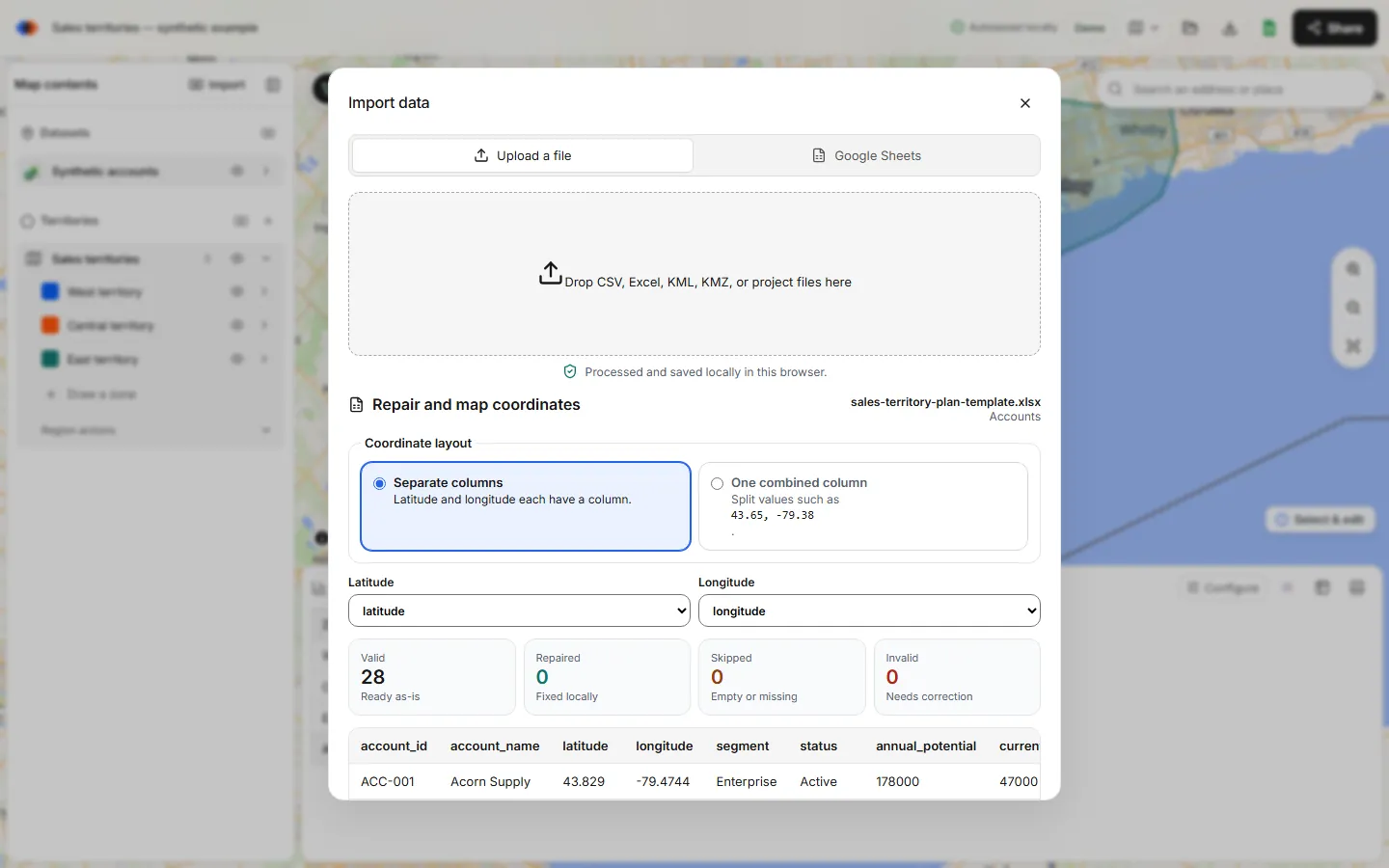
Open the map builder, choose Import and drop in the XLSX or XLS file. TerritoryKit reads the first worksheet that contains data, so put the account list on the first sheet. Confirm the latitude and longitude columns and review the valid, repaired, skipped and invalid row counts before adding the layer.
3. Draw or import the territories
Draw polygons around groups of accounts, or drag out circles for simple round territories. If your team already has boundaries in Google Earth or another tool, import them as KML or KMZ. Name each territory exactly as you want it to appear in Excel.
4. Check the counts
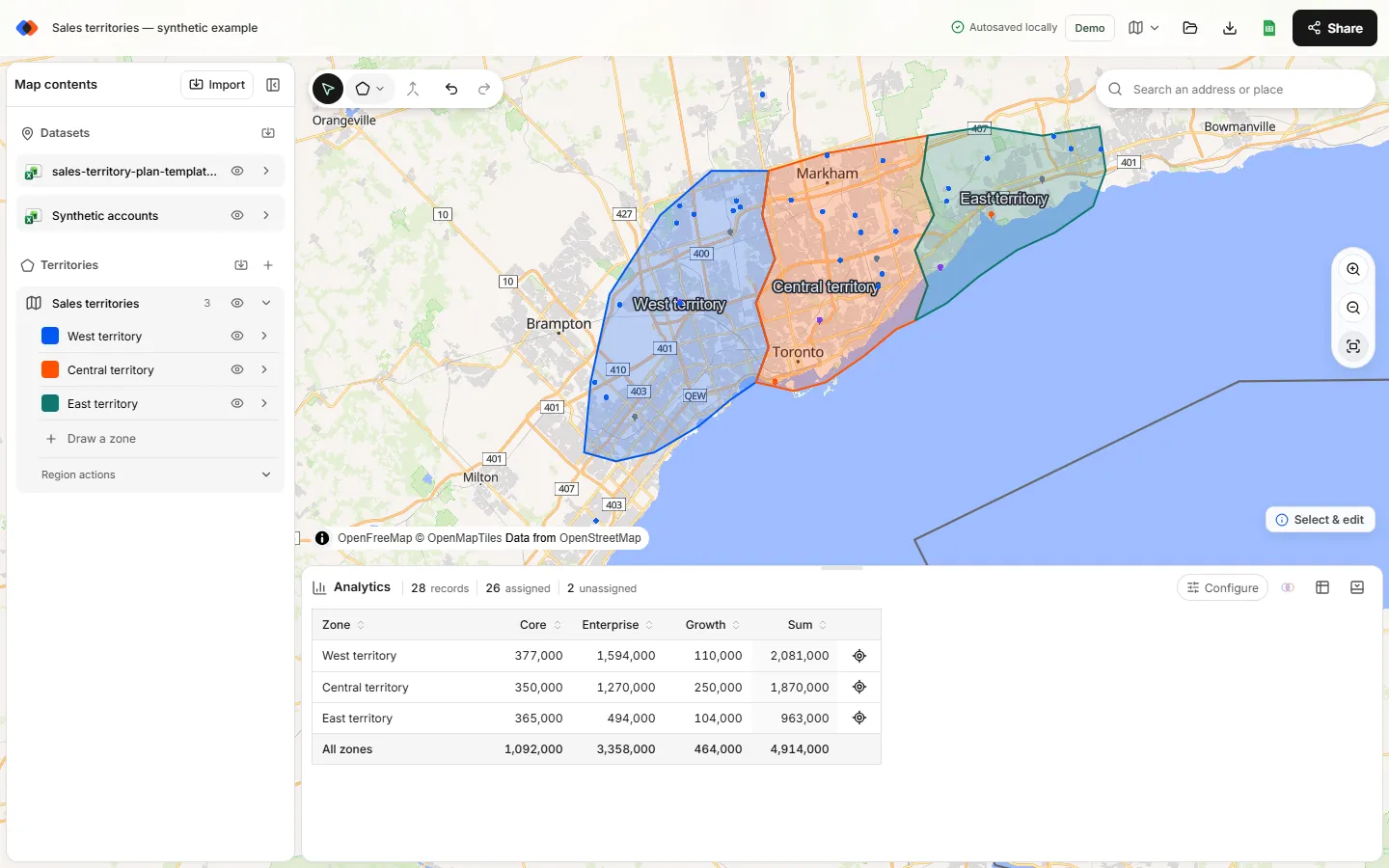
In the Analytics panel, choose Configure, pick the account layer under Dataset and the territory layer under Territories, and set Breakdown to a column such as segment. Numeric columns such as revenue can be totaled with Measure → Sum of. Move a boundary and the numbers update. Check the unassigned and multi-zone totals before you call the plan done.
5. Export assignments back to Excel
Choose Export → Point membership (Excel). Exports need a free TerritoryKit account. Each row keeps your original columns and adds matched zone names, zone count, unassigned and overlap. When a point sits in two territories, both names appear, separated by a vertical bar. Paste the export into your workbook, turn it into a table named Membership (Ctrl+T, then rename it under Table Design), and look up each account's territory by ID:
=XLOOKUP(A2,Membership[account_id],Membership[matched zone names],"Not found")&""
The &"" keeps blank results blank instead of showing 0. A blank result means the account sits outside every territory; "Not found" means the ID isn't in the export. From there, pivot tables give you territory totals by segment, revenue band or owner.
Which method should you use?
- Territories are whole states or counties and the audience only needs a colored map: use a filled map chart.
- You want to see where accounts are without defining territories: 3D Maps on Windows, or a simple point map.
- Territories are custom shapes, or you need counts, overlaps and an assignment for every account: keep Excel as the source and map the territories in TerritoryKit.
Planning from scratch? The sales territory plan template adds a ready-made summary sheet with accounts, potential and workload per territory.
FAQ
Can Excel create a sales territory map?
Yes, if territories are made of whole countries, states, counties or postal codes. A filled map chart colors each region by its territory. Excel can't draw custom territory boundaries.
Can Excel map latitude and longitude?
Not in a filled map chart: Microsoft notes map charts don't support latitude and longitude or street addresses. 3D Maps on Windows can plot coordinates, and TerritoryKit imports Excel coordinates directly.
How do I count accounts per territory in Excel?
Give every account a territory value, then use COUNTIFS or a pivot table. When territories are drawn on a map, export point membership from TerritoryKit to get each account's territory first.
Does this work in Excel for Mac?
Filled map charts work in Excel for Microsoft 365 on Mac. 3D Maps is Windows-only. TerritoryKit runs in a browser on Mac.
Can I keep my existing territory column?
Yes. Keep it as a regular column when you import. After you draw territories, compare it with the exported membership to find accounts whose current owner doesn't match the map.
Related guides
Build your first territory map
Bring your account list, draw the territories you need, and see the results as the map changes. Your first map is free.
Open Map Builder