How to make a territory map from Google Sheets
If your account or location list lives in Google Sheets, you don't need to export CSV files back and forth. Connect the sheet, draw territories over it, and write each row's territory back into the spreadsheet.
Quick answer
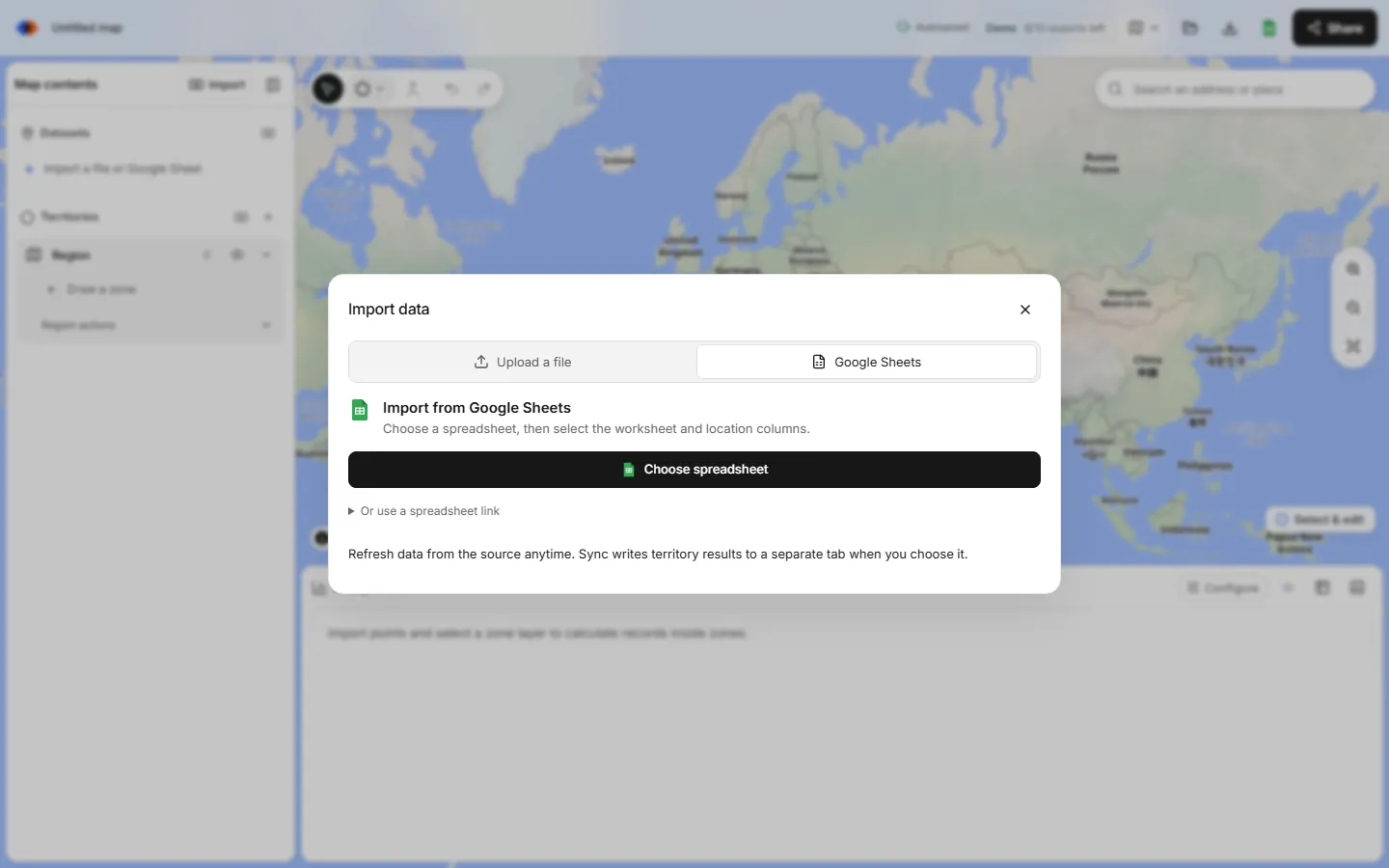
Sign in to TerritoryKit, open Import and switch to the Google Sheets tab. Connect your Google account, choose the spreadsheet, pick the worksheet and its latitude and longitude columns, and select Add to map. Draw or import territories, then use Sync territories to write each row's territory names to a separate results tab in the same spreadsheet. When the sheet changes, use Refresh data and sync again.
Why connect the sheet instead of exporting a CSV
- One source of truth. The team keeps editing the spreadsheet they already use.
- Refresh instead of re-import. New and edited rows come in with one click, and your territories stay put.
- Results land where people work. Territory assignments appear in a results tab next to the source data, ready for filters, pivot tables and lookups.
Set up your sheet first
TerritoryKit places rows by coordinates, and a Google Sheets import stops if any row has missing or invalid coordinates. A few minutes of setup avoids that:
- Put headings in the first row and one location per row below it.
- Use separate
latitudeandlongitudecolumns with decimal numbers. Combined coordinate columns aren't supported for Sheets. - Keep IDs and attributes such as segment, owner or revenue in their own columns. Numbers stored as plain numbers can be summed per territory.
- Rows without coordinates? Map a filtered tab instead. Create a tab with
=FILTER(Accounts!A:H, Accounts!C:C<>""), where column C holds latitude, and import that tab. To add missing coordinates, see how to convert addresses to latitude and longitude.
Step-by-step: connect and map a Google Sheet
Sign in to TerritoryKit
Open the map builder and sign in with Google or an email code. Google Sheets needs a TerritoryKit account.
Connect Google Sheets
Choose Import, switch to the Google Sheets tab and select Connect Google Sheets. Use the Google account that matches your TerritoryKit sign-in.
Choose the spreadsheet
Select Choose spreadsheet to open Google's file picker and pick the file. You can also paste a spreadsheet link for a file you've already granted access to.
Map the columns
Pick the Worksheet, then confirm the Latitude column and Longitude column. Common headings such as latitude, lat, longitude and lng are detected automatically.
Add to map
Select Add to map. The rows appear as a dataset, and every other column is kept as an attribute you can filter, color by and analyze.
Draw territories and check the numbers
Draw polygons or circles, or import existing boundaries as KML or KMZ. In the Analytics panel, choose Configure, pick the sheet's dataset under Dataset and your territories under Territories. Add a Breakdown such as segment, or set Measure to the sum of a numeric column. Review unassigned rows and rows in more than one territory before syncing.
Sync territories back to the spreadsheet
Select Sync territories on the dataset, or choose Export → Sync territories to Google Sheets. TerritoryKit writes a results worksheet named TerritoryKit results plus a numeric ID. Your source tab isn't changed.
| Column | What it contains |
|---|---|
| Your source columns | Every column from the mapped worksheet, so the results tab stands on its own. |
| TerritoryKit longitude / latitude | The coordinates used for the match. |
| TerritoryKit region | The region (territory layer) names that contain the row. |
| TerritoryKit area name | The territory names that contain the row, separated by semicolons. |
| TerritoryKit territories | The same territory names, for formulas that expect this heading. |
| TerritoryKit territory count | How many territories contain the row: 0 means unassigned, 2 or more means overlap. |
Each sync replaces the results tab's values, so it always reflects the current map. Point a lookup at it from your main sheet. If your source has eight columns (A–H), TerritoryKit area name lands in column L, so the formula looks like =XLOOKUP(A2,'TerritoryKit results 1482093411'!A:A,'TerritoryKit results 1482093411'!L:L,""), with your results tab's actual name.
Keep the map up to date
- Edit the spreadsheet as usual.
- In TerritoryKit, open the dataset's options and select Refresh data. Rows are replaced with the current sheet, so point edits made on the map are overwritten; territories and styling stay.
- Check Analytics for new unassigned rows.
- Select Sync territories again.
Refreshing doesn't use an export. On the free Demo plan, each sync counts as one of your ten exports; Pro removes the limit.
Permissions and privacy
The spreadsheet picker uses Google's file-level permission, so TerritoryKit works with the spreadsheets you choose rather than every file in your Drive. Importing only reads the selected worksheet; syncing writes only the TerritoryKit results tab. You can revoke access at any time from your Google Account's third-party access settings. See the privacy page for how account data is stored.
Google My Maps vs TerritoryKit for Sheets data
Google My Maps can also import a Google Sheet and draw shapes, with a 2,000-row limit per import. It doesn't count rows per territory or write assignments back to the sheet. Use My Maps for a quick visual and TerritoryKit when the territory assignment itself matters. More in territory maps in Google Maps.
FAQ
Can I map Google Sheets data without exporting a CSV?
Yes. Connect the spreadsheet from the Google Sheets tab in TerritoryKit's Import window, choose the worksheet and coordinate columns, and add it to the map.
Why did my Google Sheets import fail?
A Sheets import stops when any row has missing or invalid latitude or longitude. Fix those rows, or import a filtered tab that only contains rows with coordinates.
Does TerritoryKit change my original sheet?
No. Refresh only reads it. Sync territories writes to a separate TerritoryKit results tab and leaves the source tab alone.
Does the sync run automatically?
No. Refresh and sync are manual, so you decide when the spreadsheet is updated.
Can I use addresses in Google Sheets instead of coordinates?
Not directly. Add latitude and longitude first; the geocoding guide covers free options.
Related guides
Build your first territory map
Bring your account list, draw the territories you need, and see the results as the map changes. Your first map is free.
Open Map Builder