How to create a territory map in Google Maps
Google My Maps can draw territory shapes over your locations for free. Here are the exact steps, the limits to plan around, and what to do when you need to know how many records sit inside each territory.
Quick answer
To create a territory map in Google Maps, use Google My Maps, the free map editor that comes with a Google account. Create a map, import your locations as a layer, then choose Draw a line → Add line or shape and click around each territory to trace it. Name each shape and save it. My Maps displays the territories and the locations together, but it does not count the locations inside each shape, flag overlaps, or write assignments back to your spreadsheet.
What you need before you start
- A Google account.
- A spreadsheet with a header row and one location per row. My Maps can place rows using latitude and longitude, street addresses, place names or WKT geometry.
- No more than 2,000 rows per import. Split larger lists into several layers or files.
- A rough idea of your territory boundaries: a list of the cities, neighborhoods, ZIP areas or landmarks each territory should cover.
Step-by-step: draw territories in Google My Maps
Create a new map
Sign in to My Maps on a computer and choose Create a new map. Give the map a title such as “2027 sales territories”.
Import your locations
In the map legend, choose Add layer, name the layer, then select Import under it. Upload a CSV, XLSX or Google Sheet. Pick the column My Maps should use to position each row and the column to use as the marker title.
Add a separate territory layer
Choose Add layer again and name it “Territories”. Keeping shapes on their own layer makes them easier to style, hide and export.
Trace each territory
Select Draw a line → Add line or shape, choose the Territories layer, and click each corner of the area. Double-click or close the shape to finish, type a name such as “North” and save.
Style and share
Use the paint bucket next to each shape to set its fill color and opacity. When the map is ready, use Share to send a link or keep it private.
Google My Maps limits to plan around
Google documents these limits in the My Maps Help Center. They matter as soon as a territory plan includes a full customer list.
| Limit | Value |
|---|---|
| Rows in one imported file | 2,000 |
| Lines, shapes or places in one layer | 2,000 |
| Lines, shapes or places in one map | 10,000 |
| Total points used by lines and shapes in one map | 50,000 |
| Data table cells in one map | 20,000 |
| Unzipped KML or KMZ file | 5 MB |
| Other import files | 40 MB |
The data table cell limit catches people out: 2,000 rows with 10 columns already uses 20,000 cells. Keep only the columns you need for the map when you import.
What My Maps doesn't do for territory planning
My Maps is a good drawing and sharing tool. Territory planning usually needs a few answers it does not provide:
- How many locations are in each territory? You can see the markers, but there is no per-shape count. Counting by eye stops being reliable after a few dozen points.
- Which locations are in two territories, or in none? Overlaps and gaps are easy to miss when shapes are drawn by hand.
- Which territory does each account belong to? My Maps doesn't add a territory column to your data, so the spreadsheet and the map drift apart.
- How do the numbers change when I move a boundary? With no counts in the first place, there's nothing to recalculate after an edit.
Get territory counts from the same map
You don't have to redraw anything. My Maps can export a layer as KML or KMZ, and TerritoryKit imports KML and KMZ polygons as editable zones.
Export your territories from My Maps
In your map, open the menu next to the map title and choose Export to KML/KMZ. Select the Territories layer and download the file.
Import the territories
Open the TerritoryKit map builder, choose Import and drop in the KML or KMZ file. Polygons become a zone layer you can rename, recolor and reshape.
Import the locations
Import the same spreadsheet as CSV or Excel and select its latitude and longitude columns. TerritoryKit does not geocode address lists, so add coordinates first if your sheet only has addresses. The address-to-coordinates guide covers free options.
Read the counts
In the Analytics panel, choose Configure, pick your locations under Dataset and the imported layer under Territories. You get a count per territory, an optional breakdown by any category column, and header totals for unassigned locations and locations inside more than one territory.
Send assignments back to your spreadsheet
Choose Export → Point membership (CSV or Excel) to get each location with the territories it falls inside. Exports need a free TerritoryKit account. The account assignment guide shows how to join the file back to your sheet.
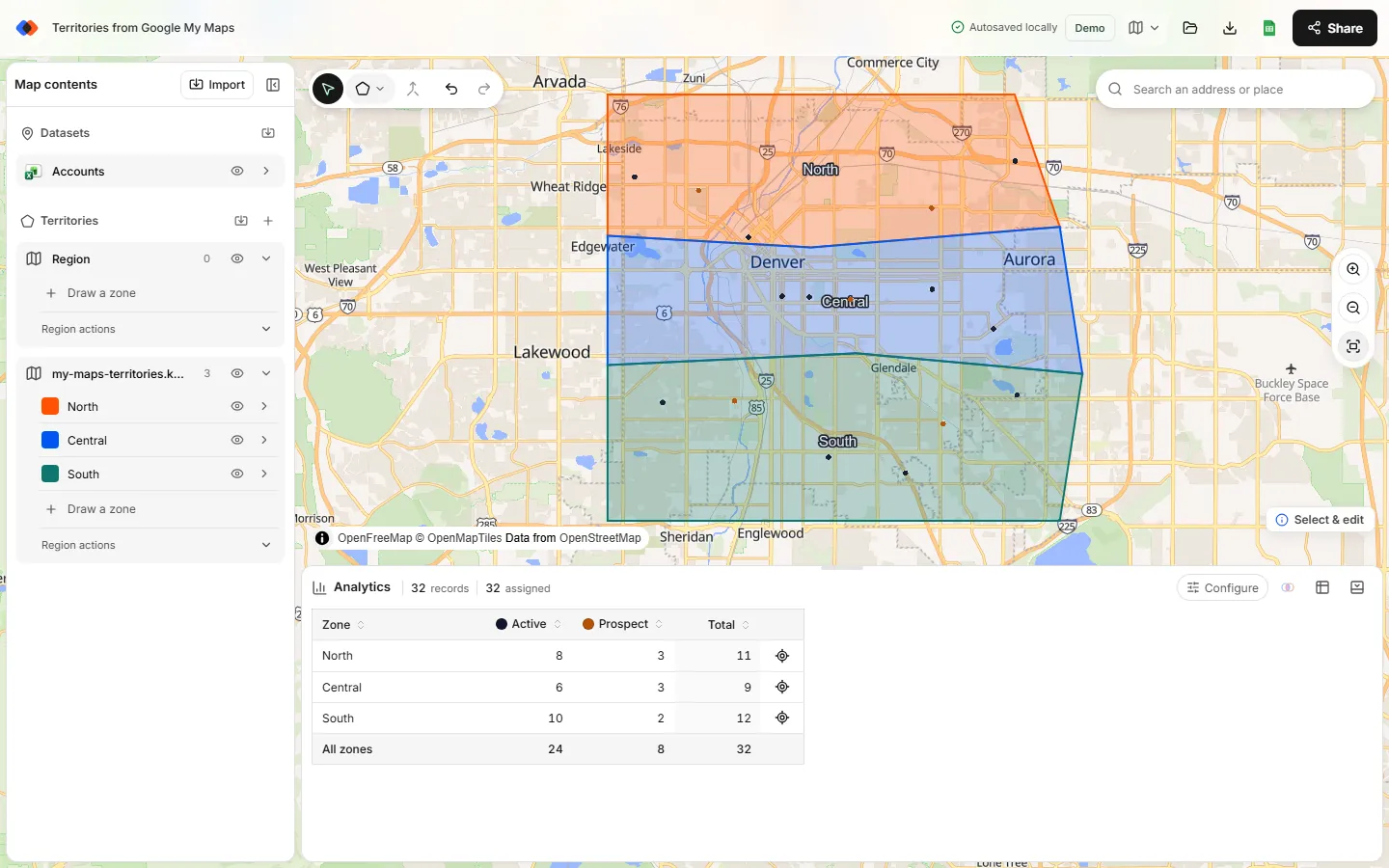
The trip also works in reverse: Export → Zones for Google Maps (KML) produces a file you can import into a My Maps layer when a team wants to view territories inside Google Maps.
Google My Maps vs TerritoryKit for territory maps
| Task | Google My Maps | TerritoryKit |
|---|---|---|
| Draw custom territory shapes | Yes: lines and polygon shapes | Yes: polygons and circles, with reshape, merge and split |
| Place rows from street addresses | Yes | No: needs latitude and longitude columns |
| Import limit | 2,000 rows per file and per layer | No fixed row cap; spreadsheets up to 20 MB, and each saved map up to 40 MB |
| Count locations per territory | No | Yes, with category breakdowns |
| Find overlaps and unassigned locations | No | Yes |
| Export assignments | No | Point membership as CSV or Excel |
| Export shapes | KML or KMZ | KML or GeoJSON |
| View on a phone | Yes, through Google Maps | Best on a desktop or laptop |
| Price | Free with a Google account | Free to map in the browser; Demo and Pro plans for saving and exports |
Which one should you use?
- Use My Maps when you need a quick visual of a few territories, your list is short, and the main goal is viewing on phones in Google Maps.
- Use TerritoryKit when the territory plan has to hold up to questions: how many accounts each rep owns, which customers fall between territories, and how the totals change when a boundary moves.
- Use both when the field team lives in Google Maps: plan and check territories in TerritoryKit, then export KML for My Maps.
FAQ
Can Google Maps automatically create sales territories?
No. Google Maps and My Maps don't generate territories from your data. You draw each shape by hand. TerritoryKit is also a manual tool, but it shows the counts, overlaps and unassigned records that help you judge the shapes you draw.
How many locations can a Google My Maps territory map hold?
Google documents 2,000 rows per imported file, 2,000 lines, shapes or places per layer, and 10,000 per map, plus a 20,000-cell limit for the map's data tables.
Can I count the customers inside each territory in Google Maps?
Not natively. My Maps shows the markers and shapes but has no per-shape count. Export the territories as KML and import them, with your customer list, into TerritoryKit to get counts per territory.
Can I move territories from My Maps to TerritoryKit?
Yes. Use Export to KML/KMZ in My Maps, then import the file into TerritoryKit. Polygons become editable zones. See KML vs KMZ for file details.
Can I draw territories in Google Maps on my phone?
Drawing and editing are designed for My Maps on a computer. Phones are better for viewing the finished map.
Related guides
Build your first territory map
Bring your account list, draw the territories you need, and see the results as the map changes. Your first map is free.
Open Map Builder