How to share an interactive territory map with your team
A territory map is only useful if the people who work the territories can see it. Here's how to share a live, interactive map with your team, what each access role can do, and how to send versions to people outside it.
Quick answer
Sign in to TerritoryKit, open the map and select Share. Enter a teammate's email, choose Viewer, Editor or Admin, and send the invitation. They sign in with that email address and open the live map, with territories, counts and the data table. For people outside your team, use Export to send a PNG or PDF, or a KML file they can open in Google Earth or Google My Maps.
Choose how to share
| Option | Best for | Interactive | Stays up to date |
|---|---|---|---|
| Share the map | Managers, reps and analysts on your team | Yes: pan, zoom, inspect territories and data | Yes: everyone sees the latest saved version |
| Map image or PDF | Slides, emails, printed handouts | No | No: export again after changes |
| KML for Google Maps or Earth | Field teams on phones, partners without an account | Yes, in Google's apps | No: export again after changes |
| Point membership table | CRM imports, operations, finance | No | No: export again after changes |
| Google Sheets sync | Teams that live in a spreadsheet | No | When you sync |
| Project backup file | Archiving, or moving a map between accounts | Yes, after importing into TerritoryKit | No |
Step-by-step: share a live territory map
Sign in and open the map
Sharing works with maps saved to your TerritoryKit account. Open the map builder, sign in, and open the map you want to share.
Select Share
Choose Share in the top bar. If the map has only been saved in your browser, TerritoryKit saves it to your account first.
Invite people
Under Add people, enter an email address, pick the Map access role and send the invitation. Invitations expire after seven days.
Recipients sign in
Each person signs in with the invited email address, using Google or an emailed code, and the map opens for them. People already listed as your team members get access straight away, without an email.
Manage access
The dialog lists People with access and Pending invitations. Change a role, remove someone, or cancel an invitation at any time.
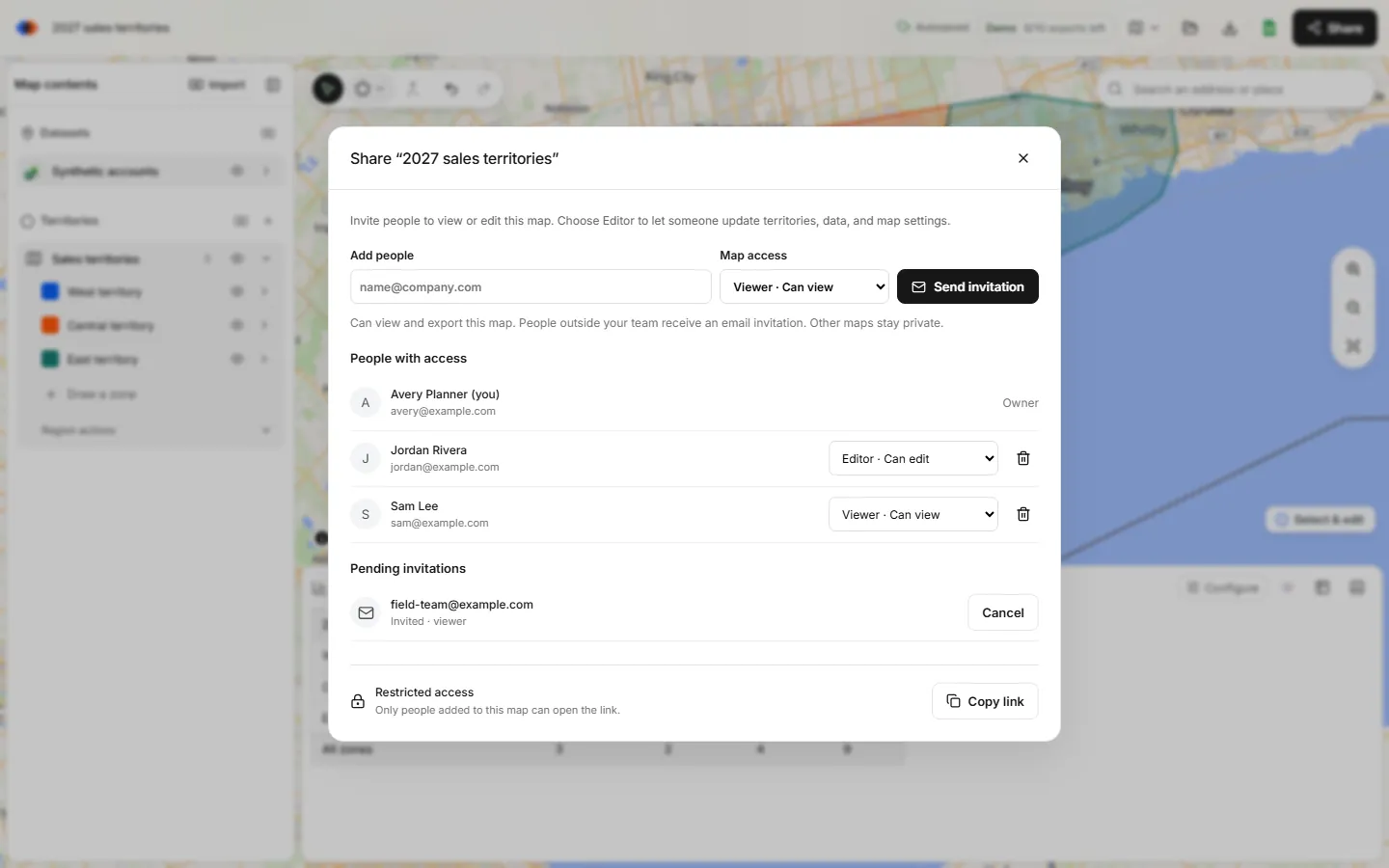
What each role can do
| Role | Can do |
|---|---|
| Viewer | View the map, territories and data, and export it |
| Editor | Everything a viewer can do, plus edit the map and its data |
| Admin | Everything an editor can do, plus manage who has access |
Copy link gives you the map's address to paste into chat or email. The link is restricted: it only opens for people you've added, so forwarding it doesn't grant access. Sharing and access roles are free on every plan, and shared maps don't count toward the recipient's own map allowance.
Share with people outside TerritoryKit
- Presentations: choose Export → Map image or print/PDF, add a title, labels and legend, then download a PNG at 1×, 2× or 4× or save a PDF. See export a territory map to PNG or PDF.
- An interactive view in Google's apps: choose Export → Zones for Google Maps (KML) and import the file into Google My Maps or Google Earth. My Maps can then be shared by link and opened in Google Maps on a phone. See territory maps in Google Maps.
- Assignments for other systems: export Point membership as CSV or Excel, or sync territories to Google Sheets.
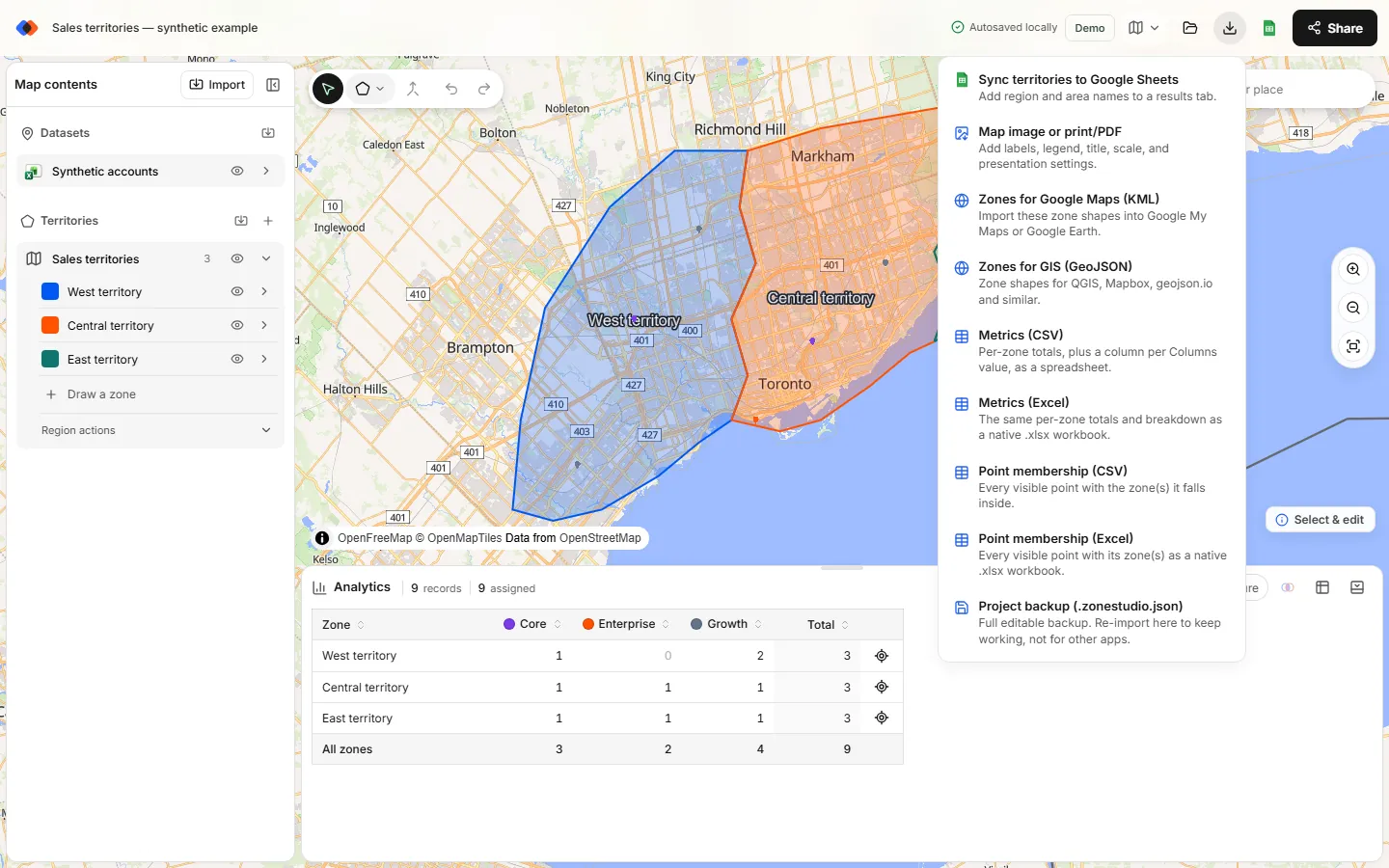
Exports need a free account. Viewers can export too, so share a map only with people who should have its data.
Keep access tidy
- Give the Admin role to one or two people per map.
- Remove access when someone changes role or leaves the team.
- Use separate maps for confidential plans, such as proposed territories that haven't been announced.
- Export a project backup before major changes, so you can return to the previous version.
FAQ
Can I share a territory map with a public link?
Not from TerritoryKit: links only open for people you've invited. For a public interactive view, export the zones as KML and share them through Google My Maps, or share a PNG or PDF.
Do people need an account to view a shared map?
Yes. Invited people sign in with the email address you invited, using Google or an emailed code. Signing in is free.
Can several people edit a territory map at the same time?
Not simultaneously. Saves use versions, and a conflicting save shows a Sync issue with options to retry, reload or keep your edits as a new map.
Does sharing cost extra?
No. Sharing, editing and access roles are free on both the Demo and Pro plans, with no seat charges.
Can viewers download the data?
Yes. Viewers can export the map, so only share with people who should have access to its data.
Related guides
Build your first territory map
Bring your account list, draw the territories you need, and see the results as the map changes. Your first map is free.
Open Map Builder