Sales territory realignment: review every account that moves
A boundary change is also an account handover. This workflow helps sales operations teams see who moves, who stays, and which accounts still need a decision before a new territory plan goes into use.
What is sales territory realignment?
Sales territory realignment changes the geographic areas or accounts assigned to a sales team. A new hire, a vacant region, an uneven workload or a change in customer demand can make the current plan worth reviewing. The goal is a plan your team can operate, with an explicit decision for every affected account.
Start with a baseline and a proposed version. Keep the account dataset unchanged while comparing the boundaries; otherwise a new account or a revised revenue figure can look like an effect of the redesign.
1. Keep a baseline you can recover
Save the current map and export a portable project backup before editing. Keep its account-membership export alongside it. Name the files with a review date and a clear label such as baseline or proposal-a. Exports require an account and use your plan's export allowance.
Include a stable account_id, a current_territory column, latitude and longitude, and the measures you want to compare. Annual potential and estimated weekly service hours answer different questions; keep them in separate numeric columns. Agree how to treat protected accounts and existing customer relationships before moving borders.
2. Draw the proposal and inspect the totals
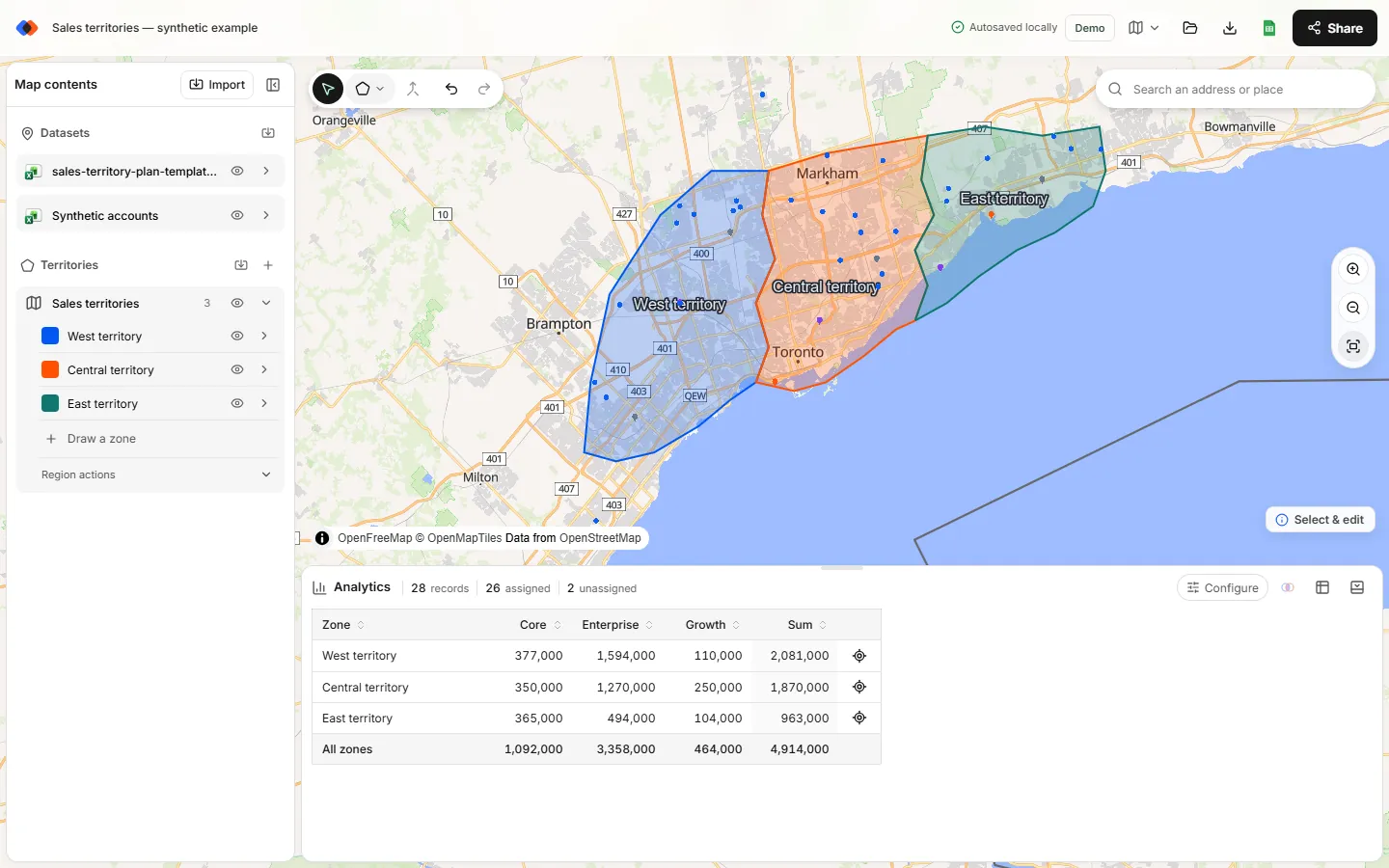
Import the coordinate-ready account list, then draw or import the proposed boundaries. In Analytics, select the account dataset and territory layer. Compare account counts first, then use Measure → Sum of for a numeric potential or workload column. Use a segment breakdown when account mix matters.
Keep territory names consistent with the baseline when an area still represents the same team. If a territory is renamed, record that separately so a simple name comparison does not flag every account as a move. TerritoryKit recalculates the numbers as you edit; you decide which change is appropriate.
3. Separate moves from unresolved assignments
Export Point membership (Excel) or CSV. The export preserves source fields and adds matched zone names, zone count, unassigned and overlap. Review zero and multiple matches before treating the remaining rows as proposed assignments.
| Account | Current territory | Proposed match | Review |
|---|---|---|---|
| A001 | North | North | Unchanged |
| A002 | North | South | Proposed move |
| A003 | South | South | Unchanged |
| A004 | South | North | South | Overlap: needs a decision |
| A005 | West | None | Unassigned: needs a decision |
| A006 | West | North | Proposed move |
The download is a fictional review worksheet, with illustrative membership values and no coordinates. It is not a boundary file or an import-ready map. Use it to practice reviewing an export, then replace it with results from your own map.
For the sample's column order, put this formula in a new column at row 2 and fill down:
=IF(D2=0,"Unassigned",IF(D2>1,"Overlap",IF(B2=C2,"Unchanged","Proposed move")))
Column B is the current territory, C is the proposed match and D is the zone count. Clean up inconsistent names before comparing. For your real export, select the equivalent columns rather than assuming they occupy the same positions.
4. Measure the impact of the proposed moves
In the sample, two of six accounts are proposed moves. Together they carry 33,000 in illustrative annual potential and 5.5 estimated service hours per week. One account is an overlap and one is unassigned; neither belongs in the approved-move count. The remaining two stay in place.
Compare both the number and the value of moving accounts. A plan that moves one large account may require more customer coordination than a plan that moves ten small ones. Sum each measure separately and retain the original unit. Potential is an estimate, not a revenue forecast, and service hours do not include calculated driving time.
5. Approve a handover list
Add proposed owner, reviewer, decision and effective date columns to the review sheet. Resolve every overlap and uncovered account, or record an explicit exception. An account exactly on a shared border can be counted in both territories, so inspect those rows too.
Share the saved map with named viewers or editors for review, then export the approved membership table for your operational system. TerritoryKit supports saved-map sharing; it does not provide simultaneous live editing or a CRM synchronization. Keep the approved boundary backup and account table together so the next review starts from a clear baseline.
FAQ
Does realignment always mean redrawing boundaries?
No. Some changes are account exceptions or owner changes within the same area. Keep those decisions in your account review instead of forcing every business rule into a polygon.
Can TerritoryKit automatically balance or reassign territories?
No. You edit the boundaries and compare counts, numeric totals, overlaps and uncovered records. Approval and owner assignment remain your decisions.
How do I compare two territory plans?
Keep the same input dataset, export membership for each plan and match the rows by stable account ID. Preserve each map as a separately named backup and review any account with zero or multiple matches.
Can I use the sample CSV to create a map?
No. This download is a review worksheet without coordinates. Use the sales territory starter map or the coordinate-ready Excel sample to practice mapping.
Related guides
Build your first territory map
Bring your account list, draw the territories you need, and see the results as the map changes. Your first map is free.
Open Map Builder