MapPoint territories: how to rebuild them without MapPoint
Microsoft MapPoint's territory tools were the reason many sales teams kept an old Windows PC around. MapPoint is long discontinued, and its .ptm project files don't open in modern tools. This guide shows how to rebuild MapPoint territories from the data behind them, step by step, and check that nothing moved.
Quick answer
MapPoint territories were named groups of geographic areas, usually ZIP codes, counties or states. To rebuild them:
- Recover the definitions: a list of each ZIP code, county or state and its territory name.
- Get boundaries for the same areas, free from the U.S. Census Bureau.
- Import and merge the areas into one shape per territory.
- Add your accounts with latitude and longitude.
- Compare each account's old territory with its new one before switching over.
Expect an hour for a typical regional plan, most of it spent recovering the territory list.
How MapPoint territories worked
MapPoint came with its own built-in geography. You created territories with the Create Territories wizard, either from a data set that listed areas and territory names, or by picking areas on the map, and then managed them in the Territory Manager. MapPoint shaded each territory, and you could plot customer pushpins on top. Behind the scenes, a territory was just a list: these ZIP codes, counties or states belong to this territory.
That's good news for a migration. The shapes came from MapPoint's built-in boundaries, but the list is yours, and the list is all you need to rebuild the map.
Step 1: Recover your territory definitions
Start with whatever you still have. In order of preference:
| What you have | What to do |
|---|---|
| The spreadsheet you originally imported into MapPoint | Use it. A two-column sheet of ZIP code (or county) and territory name is the complete definition. |
| A working copy of MapPoint and the .ptm project | Open the project and recover the territory list, for example by exporting its data to Excel or copying each territory's areas from the Territory Manager. Save the result as a ZIP-to-territory sheet. |
| A CRM or spreadsheet with a territory field on each account | List each account's ZIP code with its territory, then remove duplicates. Check ZIPs that appear under two territories. |
| Only printed maps or screenshots | Redraw the territories by hand over the old map, or rebuild them from ZIP codes by eye. Treat the result as a new plan and confirm it with your team. |
Keep an untouched copy of the original .ptm file and any exports. TerritoryKit can't open .ptm files directly, and you may want to go back to them.
Step 2: Get boundaries for the same geography
MapPoint's boundaries were licensed map data inside the program. The free modern equivalents come from the U.S. Census Bureau:
- ZIP code territories: ZIP Code Tabulation Areas (ZCTAs). See where to get ZIP code boundary files.
- County or state territories: Census county and state boundary files. See territory maps by state or county.
Download the national file, keep only the areas in your plan in QGIS, and export them as KML with the ZIP code or county name as each shape's name. ZCTAs are Census approximations of ZIP Codes, so a handful of ZIPs in your old plan, mostly PO Box and single-building ZIPs, won't have a shape. Note them; accounts in those ZIPs still map correctly by their coordinates.
Step 3: Import the areas and merge them into territories
Import the boundary KML
Open the map builder, choose Import and add the KML. Each ZIP code or county becomes its own zone, named after it.
Select one territory's areas
Using your ZIP-to-territory list, Ctrl-click (Cmd-click on a Mac) or Shift-click every area that belongs to the first territory.
Merge and name
Choose Merge selected zones. The areas combine into one territory with no internal borders. Rename it to match the MapPoint territory name exactly, so exports line up with your old data.
Repeat for every territory
Any area left on its own after you finish is either unassigned in the old plan or missing from your list. Decide which before moving on.
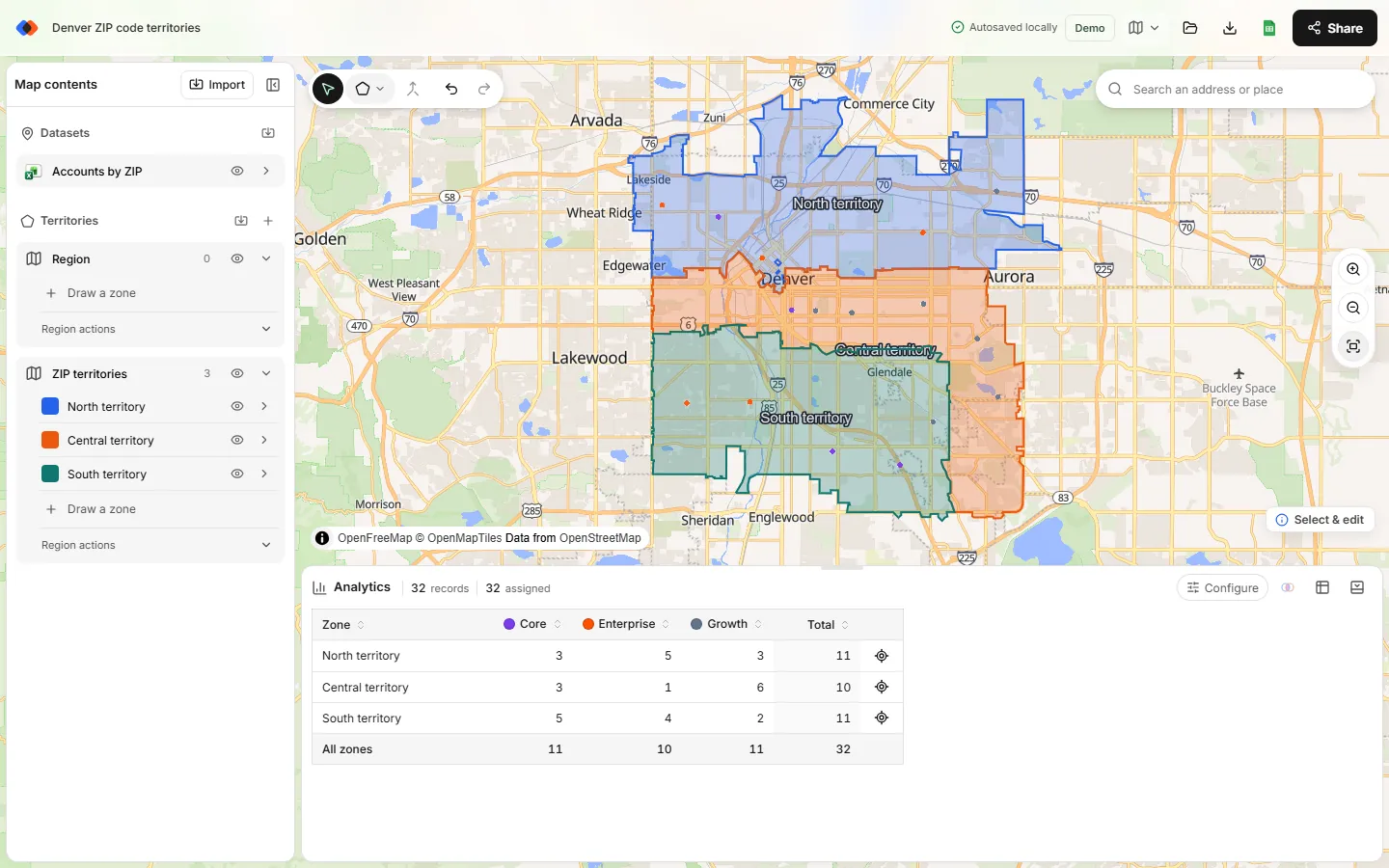
For large plans, merge territory by territory and save as you go. Signed-in maps autosave to your private workspace.
Step 4: Bring your accounts back
MapPoint placed pushpins by geocoding addresses with its built-in data. TerritoryKit places spreadsheet rows by latitude and longitude, so add coordinates before importing:
- If your MapPoint data set or CRM export already has latitude and longitude, import it as CSV or Excel and select those columns.
- If it only has street addresses, convert them first. The free U.S. Census Geocoder handles up to 10,000 addresses per batch; see addresses to latitude and longitude.
- If it only has ZIP codes, use each ZIP's internal point from the Census Gazetteer file; see plot ZIP codes on a map.
Keep the old territory column in the file. You'll use it in the next step.
Step 5: Check the rebuild against the old plan
A rebuilt map should assign every account to the same territory as before, unless you meant to change it. In Analytics, choose your accounts under Dataset and the rebuilt territories under Territories to see counts per territory. Then open the data table, where each account shows its calculated territory next to the old territory column.
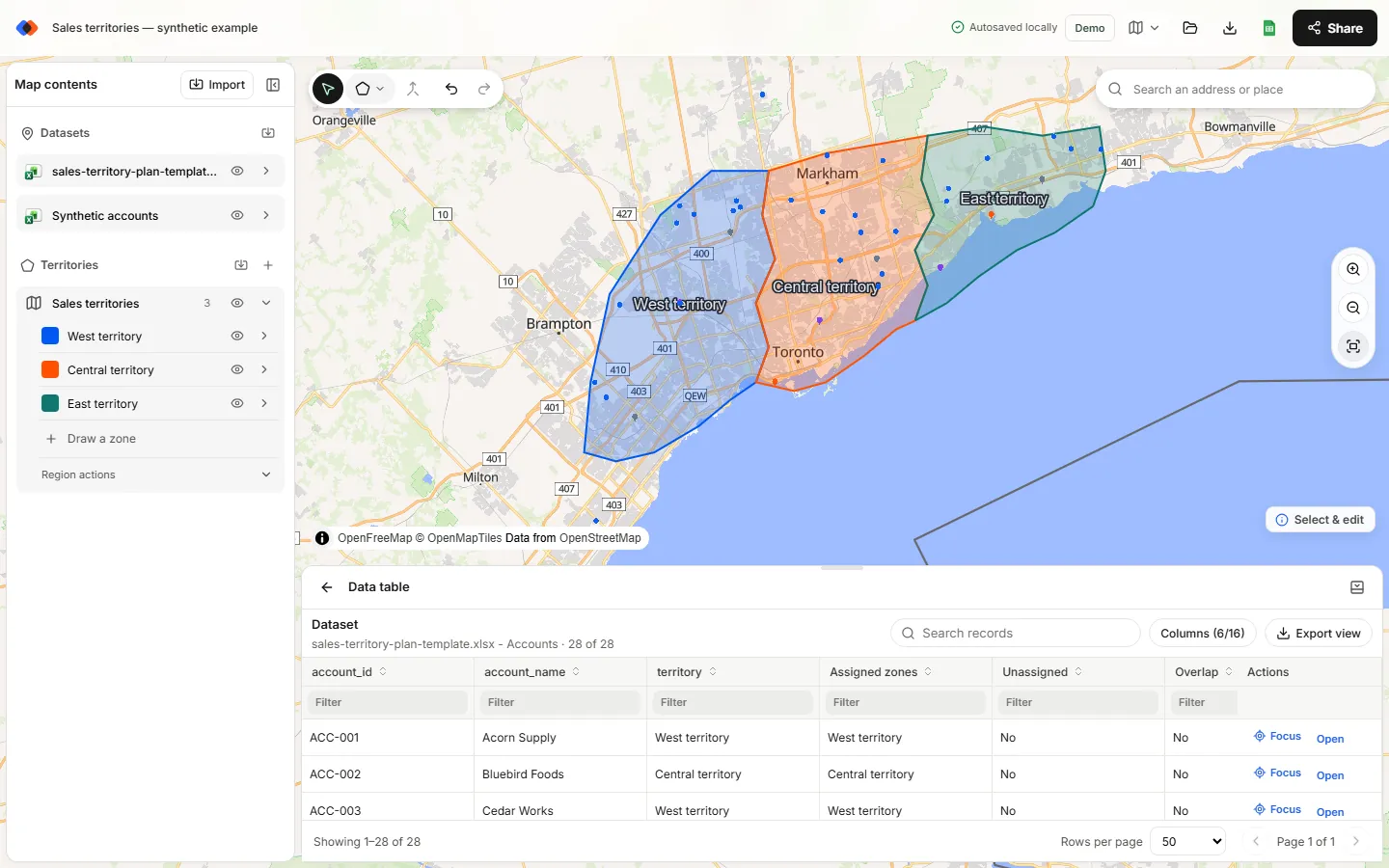
Differences usually come from:
- Accounts with missing or wrong coordinates. Fix the row and re-import.
- Accounts on a shared border. A point exactly on a border counts in both territories. Nudge the border or assign the account by rule.
- ZIPs missing from your list. Their accounts show as unassigned.
- Boundary differences. MapPoint's built-in ZIP data and today's Census ZCTAs aren't identical, so a few accounts near ZIP edges can move. Decide whether to keep the old assignment or accept the new one.
Export Point membership to Excel for a full account-by-account comparison.
MapPoint features and their modern equivalents
| In MapPoint | In TerritoryKit |
|---|---|
| Create Territories wizard from ZIP or county data | Import ZIP or county boundaries as KML, then merge |
| Territory Manager: add or remove areas | Select zones and merge, or split with Line cut |
| Freehand territories | Polygon and circle tools, with reshape, merge and split |
| Pushpins from an Excel import | CSV, Excel or Google Sheets import with latitude and longitude |
| Pie and column charts by area | Analytics counts, sums and category breakdowns per territory |
| Export data to Excel | Metrics and point membership export to CSV or Excel |
| Shaded maps by value | Not built in; use an Excel map chart or GIS for heat maps |
| Radius circles | Circle tool sized by eye; import a GIS buffer for exact distances |
| Drivetime zones and route planning | Not available; use a routing tool |
| Windows only | Runs in a desktop browser on Windows, Mac and Linux |
A low-risk migration plan
- Pick one region with territories your team knows well.
- Rebuild it and compare counts per territory with the numbers you trust from MapPoint.
- Investigate every account that moved before rebuilding the rest.
- Share the live map with your team as viewers, and editors for the people who maintain territories. See sharing a territory map.
- Export a project backup and a KML of the territories, so the plan is never locked in one tool again.
FAQ
Can I open a MapPoint .ptm file without MapPoint?
Not in TerritoryKit or most modern tools; .ptm is a proprietary MapPoint format. Recover the territory list and account data from the project or your original spreadsheets, then import those open files.
What replaced Microsoft MapPoint?
Microsoft didn't release a direct replacement. It pointed customers to Bing Maps, and later Azure Maps for developers. For territory mapping, browser-based tools such as TerritoryKit cover the main workflow. See the MapPoint alternatives guide.
Can I rebuild MapPoint ZIP code territories for free?
Yes. Census ZIP Code Tabulation Area boundaries are free, and TerritoryKit can import them, merge them into territories and count accounts in your browser. Exports need a free account.
Is there a MapPoint replacement for Mac?
MapPoint only ran on Windows. Browser-based tools work on a Mac; see territory mapping software for Mac.
Can I still use MapPoint 2013?
Installed copies may still run, but Microsoft no longer sells or updates MapPoint, and its map data stopped being updated years ago. New ZIP codes, roads and boundaries are missing.
Related guides
Build your first territory map
Bring your account list, draw the territories you need, and see the results as the map changes. Your first map is free.
Open Map Builder